📖 All guides
Set up the Attestation Station
A question-only tablet for POS-clocked teams: employees PIN in after punching out and confirm their breaks on the spot.
Show transcript
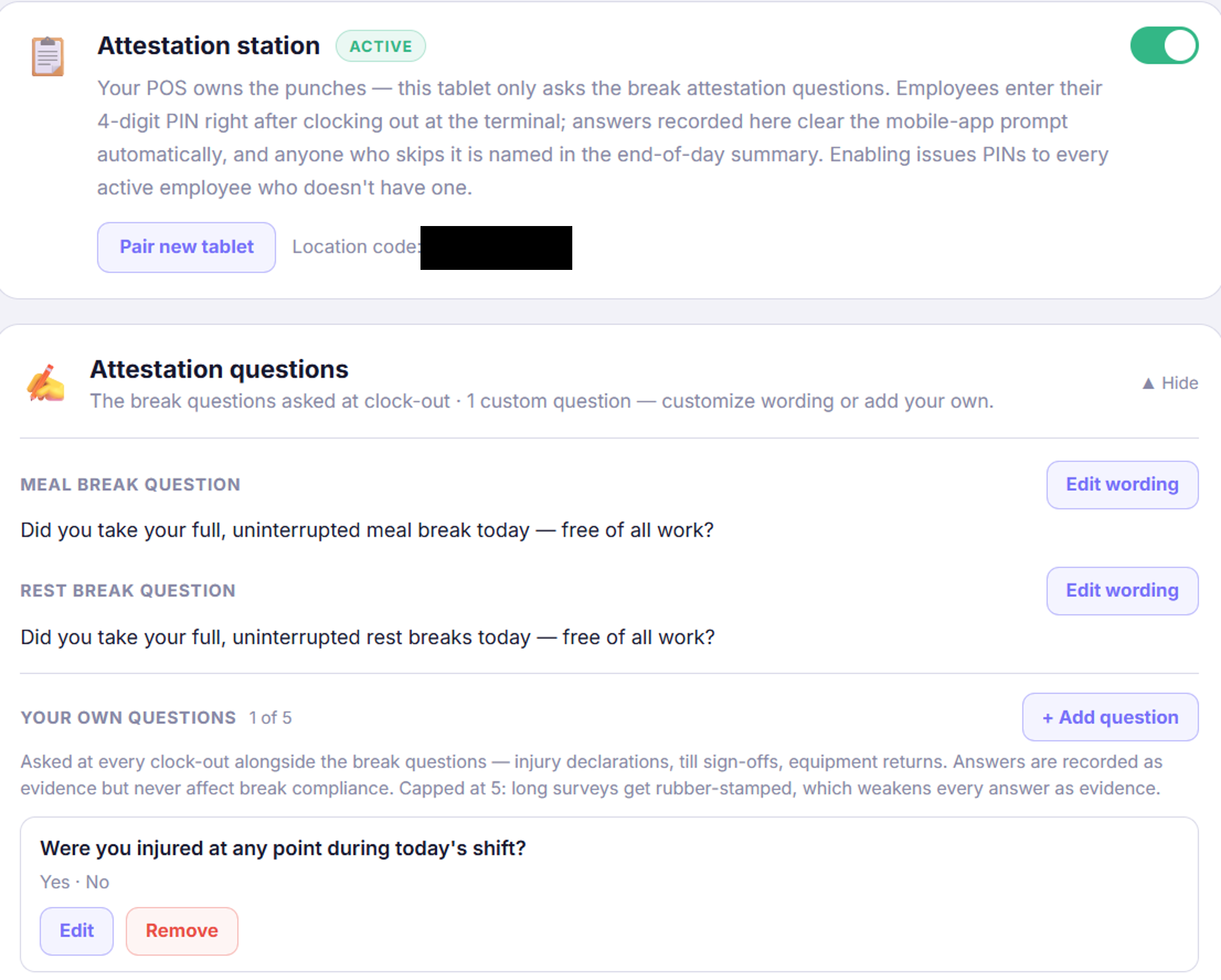
When your team punches on a point of sale, the POS has no way to ask the break questions. SafeShift's Attestation Station closes that gap: a tablet next to the POS terminal where employees answer them right after they punch out. Open the location's Integrations. Below your POS card, find Attestation station and switch it on. It is question only: nobody can clock in or out on it, so it never competes with your POS.
Take an Android tablet, install SafeShift Kiosk from the Play Store, and open it. Enter the location code and the pairing code shown here, or tap Sign in as a manager instead and use your SafeShift login. Either way the tablet pairs as a question-only station. Put it next to the POS terminal, and tell your team to tap it after they punch out.
Attestation questions is where you decide what is asked. The meal and rest break questions come ready in English and in Spanish, and an employee whose preferred language is Spanish sees every question, and every screen on the station, in Spanish. Click Edit wording to change a question in either language. Keep it plain and factual, and have your lawyer read the wording before you roll it out; the editor asks you to confirm that.
Each break question offers three answers: I took it, I chose to skip it, and I was not able to. If the skip answer is a point of contention for you, tick Don't offer I chose to skip. Employees then answer only taken or unable, and every break not taken in full pays the premium. Save, and the list shows which questions carry your wording and where the skip option is off. Revert to default brings the original back at any time.
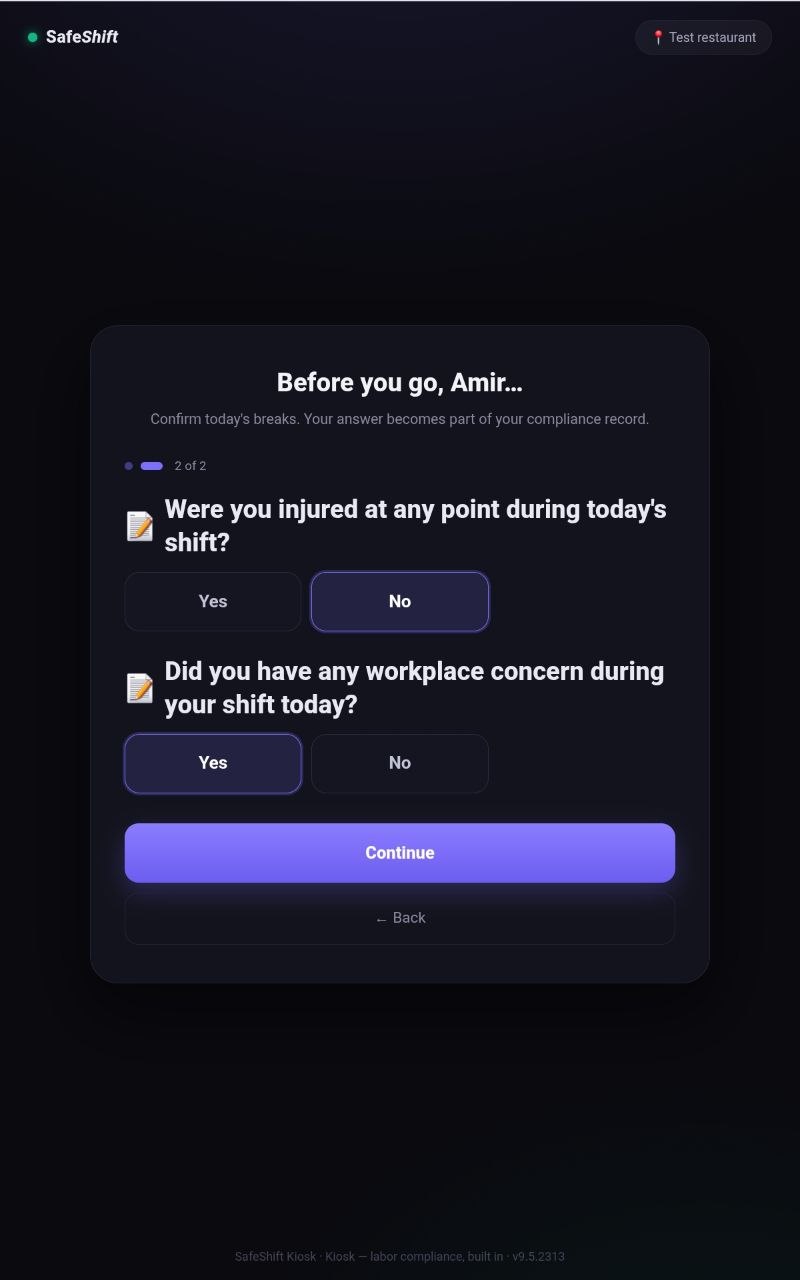
Your own questions go below. Click Add question, type it in English and, if you like, in Spanish, and set the answers. An injury declaration is the common one: were you injured at any point during your work today? Save it, and it is live. You can add up to five. At clock-out the station asks the break questions first, then yours, and every answer is stored with the employee's name and the time.
And that is the Attestation Station: the break questions a POS cannot ask, in your words, in both languages, answered the moment the shift ends.
When the POS owns the punches, there's no clock-out screen to ask the break questions on — and employees who skip the app never answer them. The Attestation Station closes that gap: a tablet next to the POS terminal where employees enter their 4-digit PIN right after punching out and answer the break questions (plus any custom questions you've added). It's question-only by design — it can never record a punch.
- 1
Enable it
Locations → Integrations: on a POS-clocked location the Attestation station card sits under your POS card. Flip it on — every active employee without a PIN gets one automatically.
- 2
Pair the tablet
Same flow as the punch kiosk. On an Android tablet open the Play Store, install SafeShift Kiosk and open it; on an iPad open
safeshiftops.com/kioskin Safari, Share → Add to Home Screen, and open it from there. Then either click Pair new tablet here and enter the location code and the one-time pairing code on the tablet, or tap Sign in as a manager instead on the tablet, use your SafeShift email and password, and choose Attestation station. Either way the tablet pairs as a question-only station. You can name it during pairing — useful once you have more than one. - 3
The employee flow
Punch out on the POS, walk two steps, enter your PIN. The station greets you by first name and asks exactly what's still unanswered — the meal and rest questions, plus your custom questions. If a punched break ran short that day (a 20-minute meal, a 6-minute rest), the station also asks whether ending it early was the employee's choice — the same question the app asks, with the measured minutes. More than three questions paginate automatically with big Next buttons. Thirty seconds, done.
- 4
How it fits with the app
One answer per question per shift, wherever it's given: answering at the station clears the prompt in the mobile app and portal automatically, and someone who already answered on their phone sees “All set” at the station. If yesterday's questions went unanswered, the station serves those too — it's a catch-up door, not just a same-day one.
Good to know
- Employees who skip attesting are named in your daily digest's follow-ups — the station plus that list is how POS-only teams get to full answer coverage.
- The station shares the punch kiosk's PIN security: wrong-PIN lockouts, and a manager PIN required to unpair the tablet.
- PIN in with no recent shift at that location? The station says so politely and suggests trying again after the POS syncs (about 5 minutes).
If something goes wrong
Can employees clock in or out on the Attestation Station?
No — station tablets are question-only and the server refuses punches from them outright. If you want tablet punching, that's the regular PIN kiosk (its own toggle on the same page).
Do answers from the station look different in reports?
They're identical evidence — same immutable record, marked as answered via kiosk, shown in the court-ready report with the exact question wording and timestamp.