📖 All guides
Tip pooling & distribution: how tips get split
Where SafeShift's tip numbers come from, how to pick a tip policy (keep own, pool, or share a %), and how to read and adjust each pay period's split.
Tip Management (Payroll → Tip Management, or Pay & Tips → Tip Management) does three jobs: it collects every tip dollar your POS and employees report, splits it under the tip policy you choose, and keeps a day-by-day record of who received what and why. It's on every plan. SafeShift never moves money — the split becomes paycheck lines (or a record of cash paid at close) that your payroll uses.
- 1
1. Know where the tip numbers come from
Card tips arrive from your POS with each punch. With Toast, that's the non-cash tips Toast credits to each employee's time entry (normally whoever closed the check). Declared cash tips come from the tip declaration your employees make at clock-out, in Toast or in SafeShift. House tips (DoorDash, catering, a shared jar) are entered by a manager on the This pay period tab. A shift's tips show up once its clock-out has synced, and corrections made in your POS flow over on the next sync. Mandatory service charges and auto-gratuities are not tips, so they're never imported or pooled.
- 2
2. Pick the location (or the company-wide default)
Use the location picker at the top of the app. Each location can have its own policy. With All Locations selected you edit the company-wide default, which any location without its own policy inherits (the status line says “inherited from the company-wide default”).
- 3
3. Choose a policy on the Tip policy tab
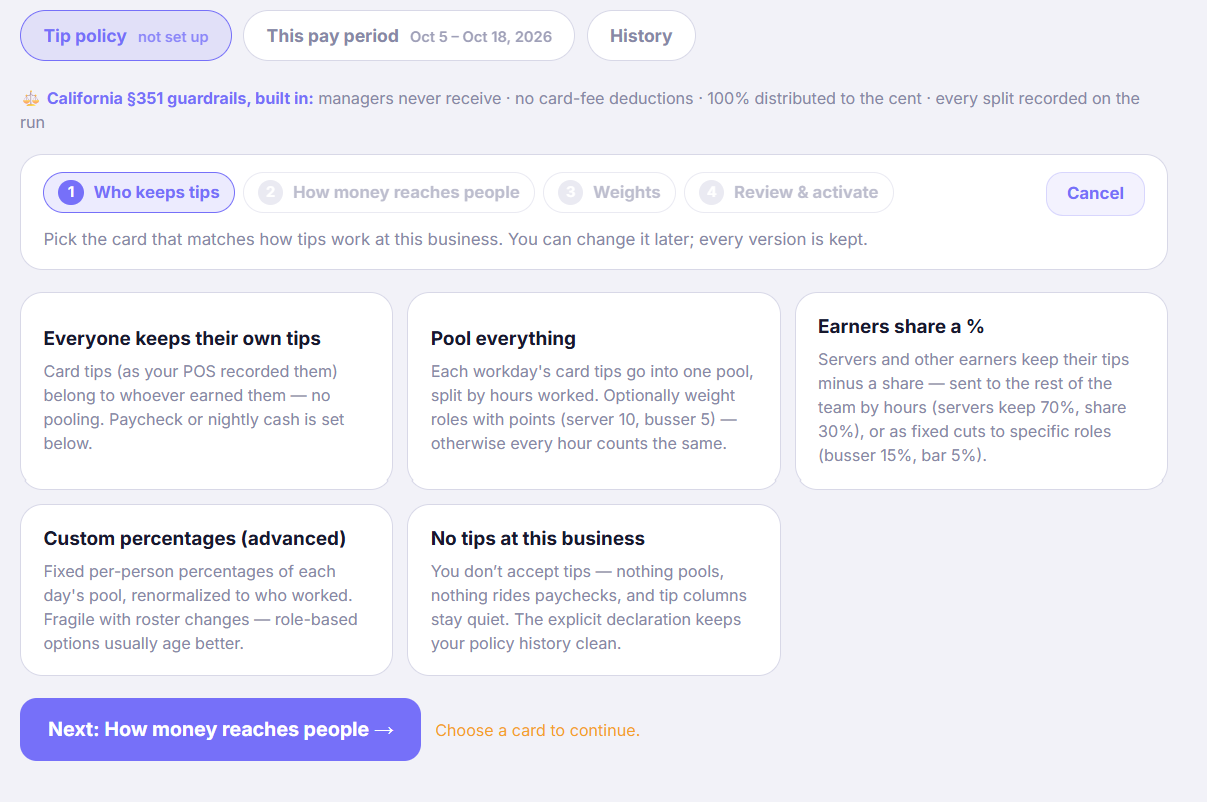
Click Set up tip policy (or Edit policy). Four short steps: Who keeps tips → How money reaches people → Weights → Review & activate. Nothing changes until you activate. The policies are described below.
- 4
Everyone keeps their own tips
Each employee's card tips stay theirs, with no pooling. Choose this too if your POS or your own process already redistributes tips, so SafeShift doesn't split them a second time.
- 5
Pool everything
Each workday's tips go into one pool, split by hours worked. Optionally give roles points (server 10, busser 5) so some hours count more; leave points blank for a straight hours split.
- 6
Earners share a %
Servers (or other earning roles) keep their tips minus a share. The share goes either to the whole team by hours (“servers keep 70%, share 30%”) or to specific roles as fixed cuts (“busser 15%, bar 5%”). You tick which roles earn tips and enter the share.
- 7
Custom percentages (advanced) and No tips
Custom percentages gives each person a fixed percentage of each day's pool, adjusted to whoever worked that day. It's easy to break when the roster changes, so role-based options usually work better. No tips at this business means nothing pools and tip columns stay quiet.
- 8
4. Decide how the money reaches people
On paychecks: each person's amount becomes a paycheck earning (inside gross pay). In cash at close: tips are paid out nightly in cash, so payroll reports them as received (taxed) but never pays them again. For pooled and share policies you also choose what happens to declared cash: Handed in — joins the pool (declared cash is split with card tips) or Employees keep it (declarations stay a tax record and only card/POS tips are split).
- 9
5. Decide who receives: the Tip pools setting
By default, everyone who worked receives from a pool or share except managers: the owner, anyone with a Manager-level login, anyone whose title is GM or contains Manager or Supervisor, and anyone who holds a second role with such a title (California Labor Code §351). Shift Leads are not managers for tips and share like the crew. To change one person, open their profile on the Team page and set Tip pools: Follows policy (the default), Excluded from tip pools (a lead who doesn't take tips), or Eligible — works the floor (a “Shift Manager” title on someone who serves alongside the crew). Next to the setting you'll see the result and the reason, for example “Never receives — manager login”. Someone with a Manager-level login, or the owner, can't be made eligible. The Tip policy tab lists everyone who never receives and why.
- 10
6. Review last period's real numbers, then activate
The review step reruns your last completed pay period under the new policy, showing each person's hours, what they collected, their share, and what they would receive. Pick an effective date (today by default) and click Activate. Backdating (up to 92 days) re-splits any unapproved period from that date; approved pay history never changes. Every version is kept on the History tab.
- 11
7. Check each period on the This pay period tab
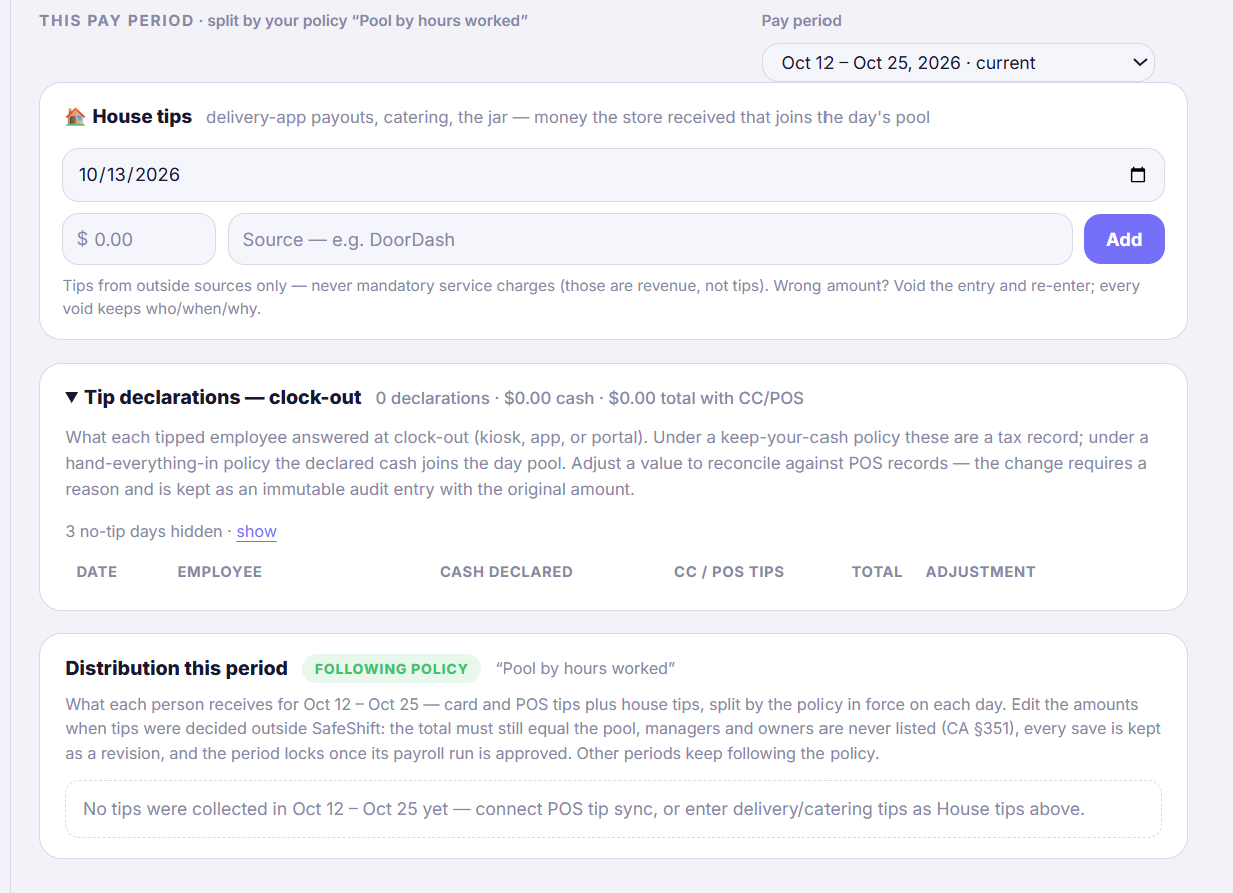
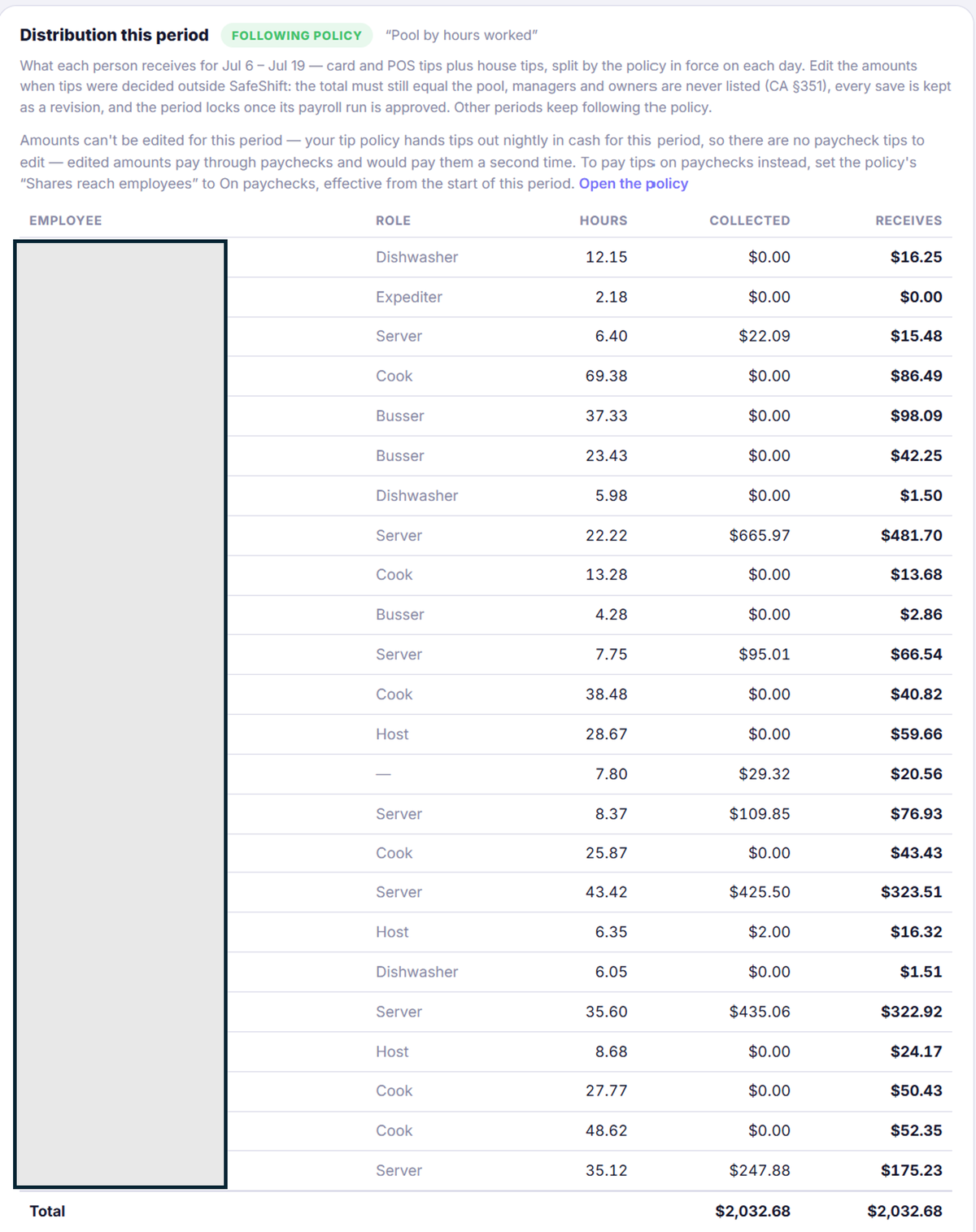
Pick a pay period. The summary strip shows the totals (“Pool this period”, or “Tips collected this period” under a share policy) and whether money is going “On paychecks” or “In cash at close”. Below it you'll find House tips (add DoorDash, catering, or tip-jar money for a day), Tip declarations (review and adjust declared cash), Distribution this period (each person's hours, what they collected, and what they receive), and a day-by-day breakdown that shows exactly how each workday's split was calculated. That breakdown is also the record to hand an employee who asks how their share was worked out.
- 12
8. Adjust one period by hand if you need to
In Distribution this period, click Edit amounts to type each person's amount, starting from the policy's split. The total must still equal the pool, so save once “Still to enter” reads $0.00. This changes that one period only: the policy keeps running for every other period, Reset to policy undoes it, and the amounts lock once that period's payroll run is approved. Not available when tips are paid out in cash at close, because that cash has already gone home.
Good to know
- California rules are built in: owners and managers never receive from a pool or tip-out (Labor Code §351), though tips they collect still go into the pool; credit-card fees are never deducted from tips; and 100% of every pool is distributed, to the cent.
- Splits are calculated per workday, by hours actually worked that day. Someone who collected tips but has no hours that day can't receive from that day's pool.
- Role-based policies use the role worked on the shift when it's scheduled, otherwise the employee's role on the Team page. Keep Team-page roles accurate.
- If tips look wrong, open the day-by-day breakdown for that date first. It shows each person's hours, what they collected, and their share, which usually explains the difference in seconds.
If something goes wrong
The split doesn't match what we expect — where do I start?
Check three things. (1) Which policy is active for this location, and since when? It's shown at the top of the Tip policy tab. If it says “Legacy setting”, no policy has been chosen yet: everyone keeps their own card tips, and the status line says how they're paid — “on paychecks” (the usual case) or “paid out nightly in cash” (your original account setting). Never hand out in cash tips that are going on paychecks, or they're paid twice; setting up a policy makes the payout explicit. (2) Are the hours right? Pools split by hours worked, so a missing or wrong clock-out changes everyone's share that day. (3) Are the collected tips right? Compare one employee's day in the day-by-day breakdown with their Toast time entry. Card tips are credited to whoever Toast put them on.
Why do our numbers differ from our own spreadsheet?
The usual causes: your spreadsheet splits by scheduled hours (SafeShift uses actual punched hours); it includes service charges or auto-gratuities (those aren't tips, so SafeShift leaves them out); a manager receives a share in the spreadsheet (California law doesn't allow that, so SafeShift never does); or your spreadsheet pools across a whole week, while SafeShift pools each workday separately. If a whole-period split is what your house actually does, use Edit amounts for that period.
Our POS already pools tips — should I set a pool here too?
Pick one place to do the split. If your POS (or your own process) already redistributes tips before they reach SafeShift, choose Everyone keeps their own tips here so SafeShift records the amounts as they arrive and doesn't split them a second time.
A manager or owner collected tips — where do they go?
Into the pool or tip-out, like anyone else's. A manager can give a share but never receives one. Managers are left out of the receiving lists automatically, and SafeShift refuses to save a weight for them. To change who receives for one person, use the Tip pools setting on their Team profile (step 5 above).
A lead shows “never receives” but should share (or the other way round).
Open their profile on the Team page. The line next to Tip pools says why they don't receive: a Manager-level login never receives (a Shift Lead login shares); a title that is GM or contains Manager or Supervisor, on their main role or on a second role they hold, is excluded unless you set Tip pools to Eligible. To keep a lead out of the pool, set it to Excluded. The change applies from the next time the period is computed; pay periods whose payroll run is already approved don't change.
I changed the policy but last week didn't change.
New policies start on their effective date (today by default). To re-split earlier days, set the effective date back (up to 92 days). That only works for periods whose payroll run isn't approved yet. Approved periods never change; corrections appear as adjustments on the next run.