📖 All guides
PINs explained: punch PIN vs Manager PIN
Every employee has a 4-digit punch PIN for the kiosk; every owner and App Manager has a 6-digit Manager PIN for authorizations. Here's where each lives.
SafeShift uses two different PINs, and mixing them up is the most common kiosk question. The 4-digit punch PIN belongs to an employee — it's how the entrance tablet knows who is punching. The 6-digit Manager PIN belongs to an owner or App Manager — it authorizes exceptions: an early clock-in, ending a meal break short, or unpairing a tablet. An employee types their own 4 digits every shift; a manager types their 6 digits only when the system asks for an authorization.
- 1
Employees get their punch PIN automatically
You never hand out PINs manually. Every way an employee enters SafeShift — added on the Team page, imported from a CSV, or synced from your POS — assigns them a 4-digit punch PIN automatically, defaulting to the last 4 digits of their phone number when that's free. PINs are unique per business, so two employees can never share one. Turning the kiosk on for a location backfills PINs for anyone missing one.
- 2
Managers: reveal or reset any employee's PIN
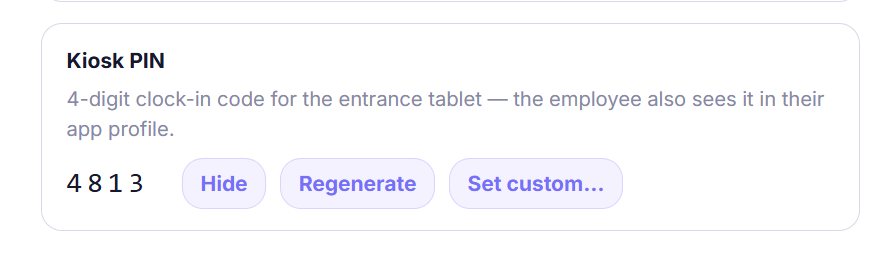
On the Team page, open an employee and use Reveal PIN (or reset it to a new random one — for example when someone changes phone numbers and wants their usual last-4). Every reveal is audit-logged, so there's always a record of who looked. The same controls are in the mobile app's Team tab.
- 3
Employees: see your own PIN in the app
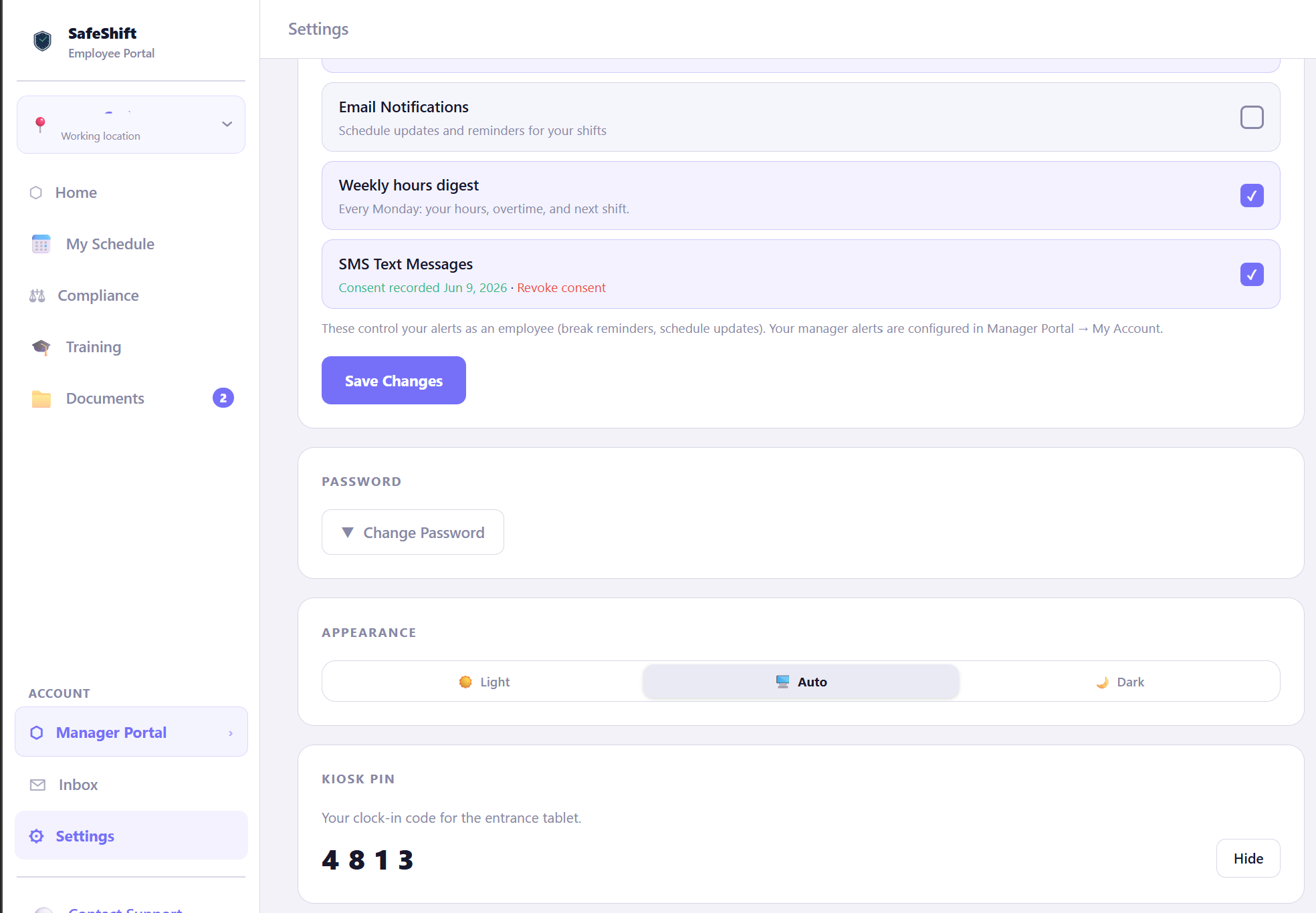
Usually it's simply the last 4 digits of their phone number on file — that's the default when a PIN is assigned. An employee can also always check their own punch PIN — in the mobile app under Profile, or on the employee web portal. The PIN card appears whenever their location has the kiosk enabled. No one has to ask a manager just to remember their number.
- 4
Owners & App Managers: your 6-digit Manager PIN
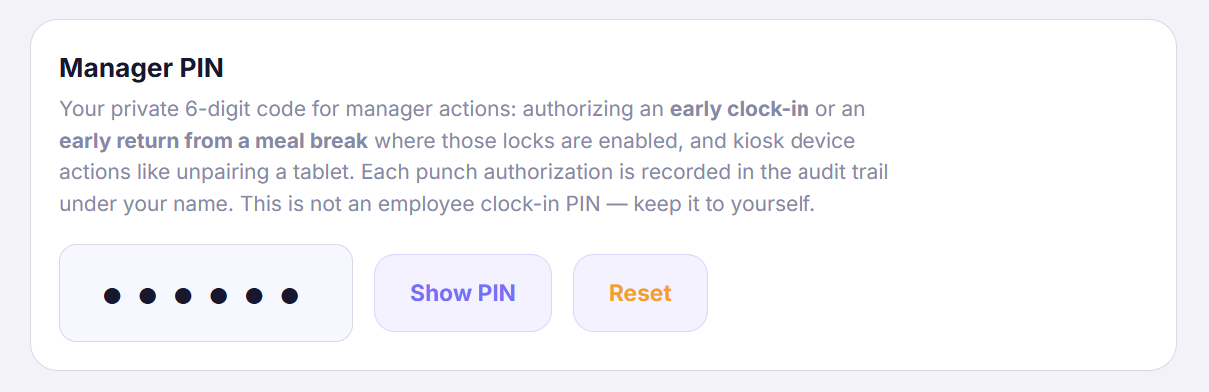
Each owner and App Manager has their own Manager PIN under Settings → My Account → Manager PIN — reveal it there, or reset it to roll a new one (the old code stops working immediately). It's personal, not shared: when a manager authorizes an early clock-in at the kiosk, the record shows which manager approved it.
- 5
When the Manager PIN is asked for
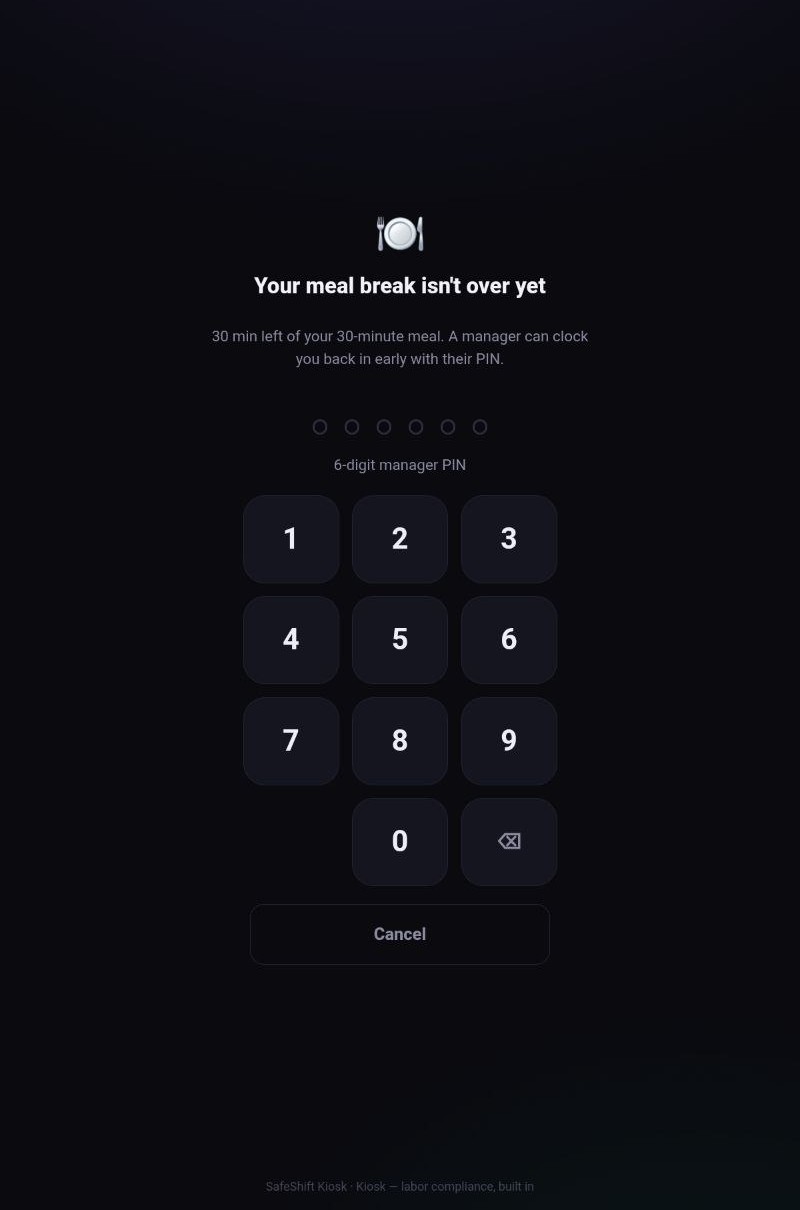
The 6-digit PIN only appears when something needs an authorization: an employee punching in earlier than the grace window before their scheduled shift, an employee ending a meal break before 30 minutes, or unpairing a kiosk tablet (the ⚙ gear on the kiosk). Everyday punches never ask for it — that's what the employee's own 4-digit PIN is for.
Good to know
- Never share a Manager PIN — each authorization is recorded under the PIN's owner, which is exactly the evidence trail you want.
- Employee PIN reveals are audit-logged; casual browsing of PINs leaves a record.
- Five wrong PIN attempts at the tablet locks that device briefly — a forgotten PIN is a Team-page reveal away, not a guessing game.
- Resetting either kind of PIN takes effect immediately — the old number stops working the moment the new one exists.
If something goes wrong
An employee forgot their PIN — what's the fastest fix?
Have them try the last 4 digits of their phone number first — that's the default. Otherwise they can check it themselves in the app under Profile, or any manager can reveal it from the Team page in seconds.
Can an employee choose their own PIN?
No — PINs are assigned (last-4-of-phone by default) and managers can reset them to a new random one. Fixed assignment keeps them unique across the business and stops guessable patterns.
Do App Managers who also work shifts have both PINs?
Yes. Their 4-digit punch PIN clocks their own shifts like anyone else; their 6-digit Manager PIN authorizes exceptions. The two are independent.
Is the Manager PIN the same as the 6-digit tablet pairing code?
No. The pairing code is single-use and expires in 30 minutes — it only pairs a new tablet. The Manager PIN is permanent (until reset) and authorizes punch exceptions and unpairing.