📖 All guides
Set up the entrance tablet (PIN kiosk)
Turn any tablet into a punch clock: employees clock in/out and start breaks with a 4-digit PIN.
The kiosk is a web app — no app store needed. Any tablet with Chrome or Safari works. Pairing takes about two minutes.
- 1
Turn the kiosk on for your location
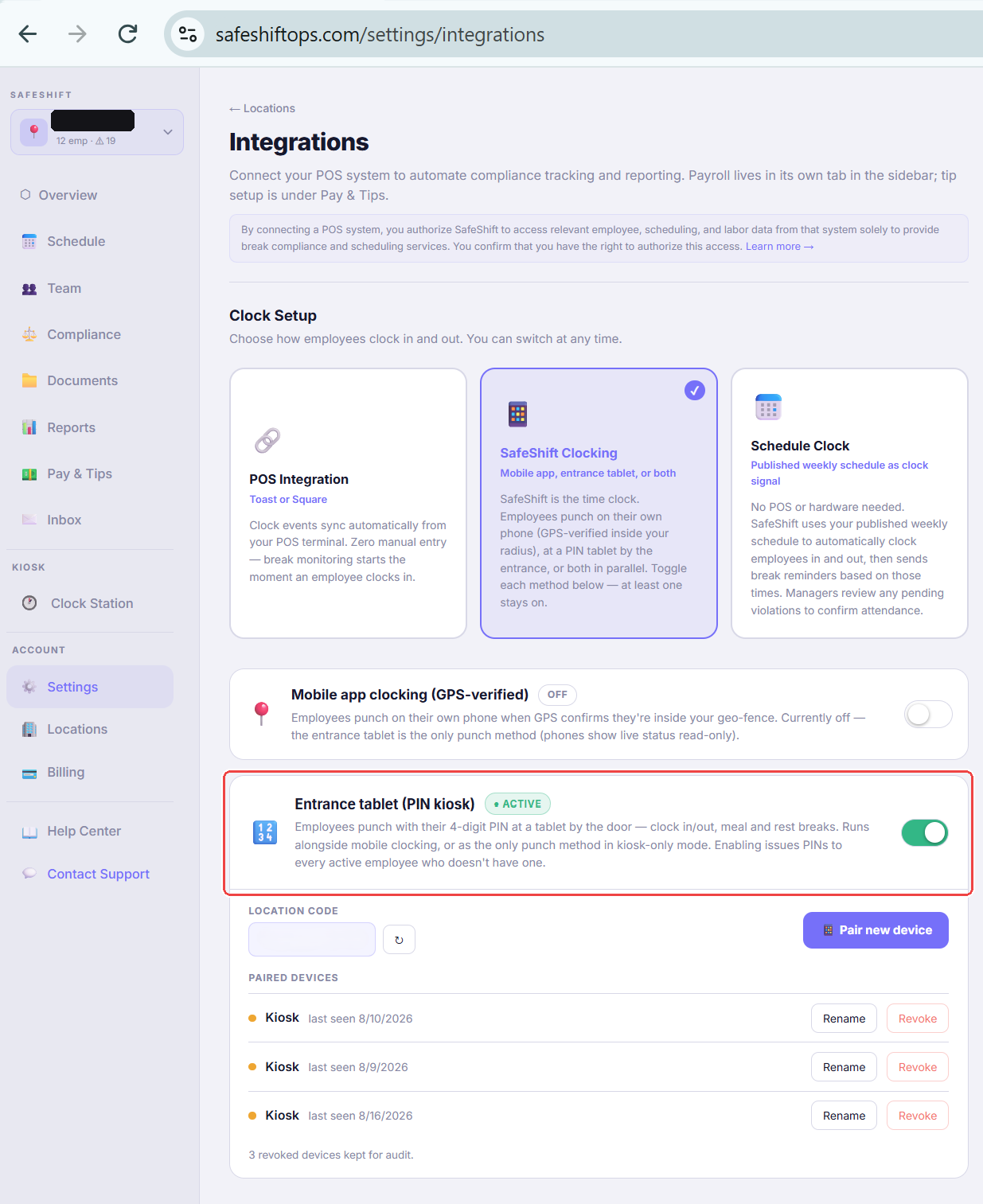
With the right location selected, go to Locations → Integrations → Clock Setup, open the SafeShift Clocking card, and enable the kiosk toggle. SafeShift automatically assigns a 4-digit PIN to every active employee who doesn't have one (defaulting to the last 4 digits of their phone when available).
- 2
Get a pairing code
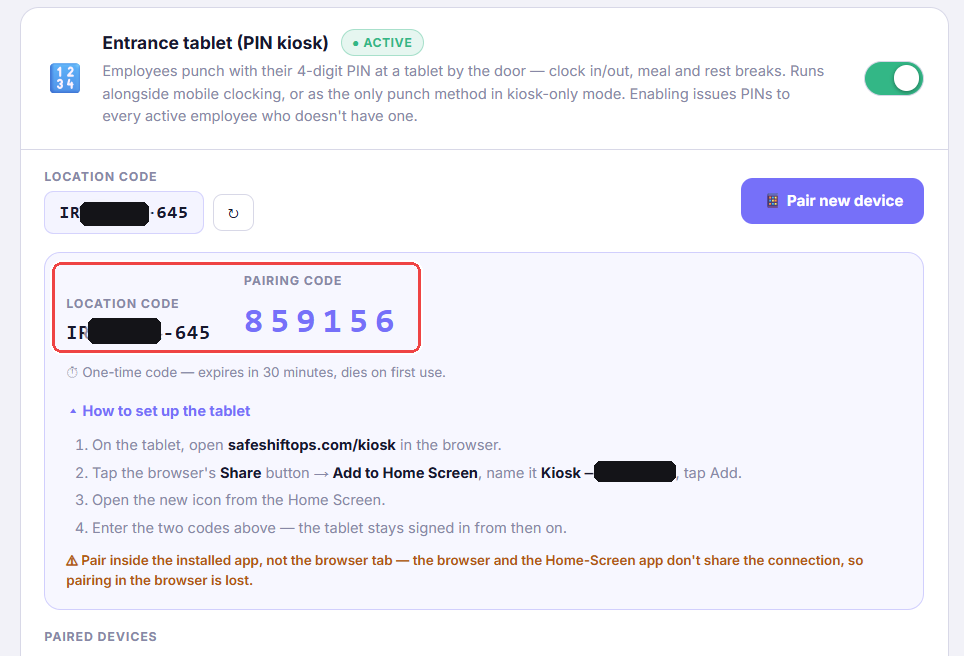
Go to Locations → Integrations → Entrance tablet and click Pair new device. You'll see your location code and a 6-digit pairing code. The code is single-use and expires in 30 minutes.
- 3
On the tablet, open safeshiftops.com/kiosk
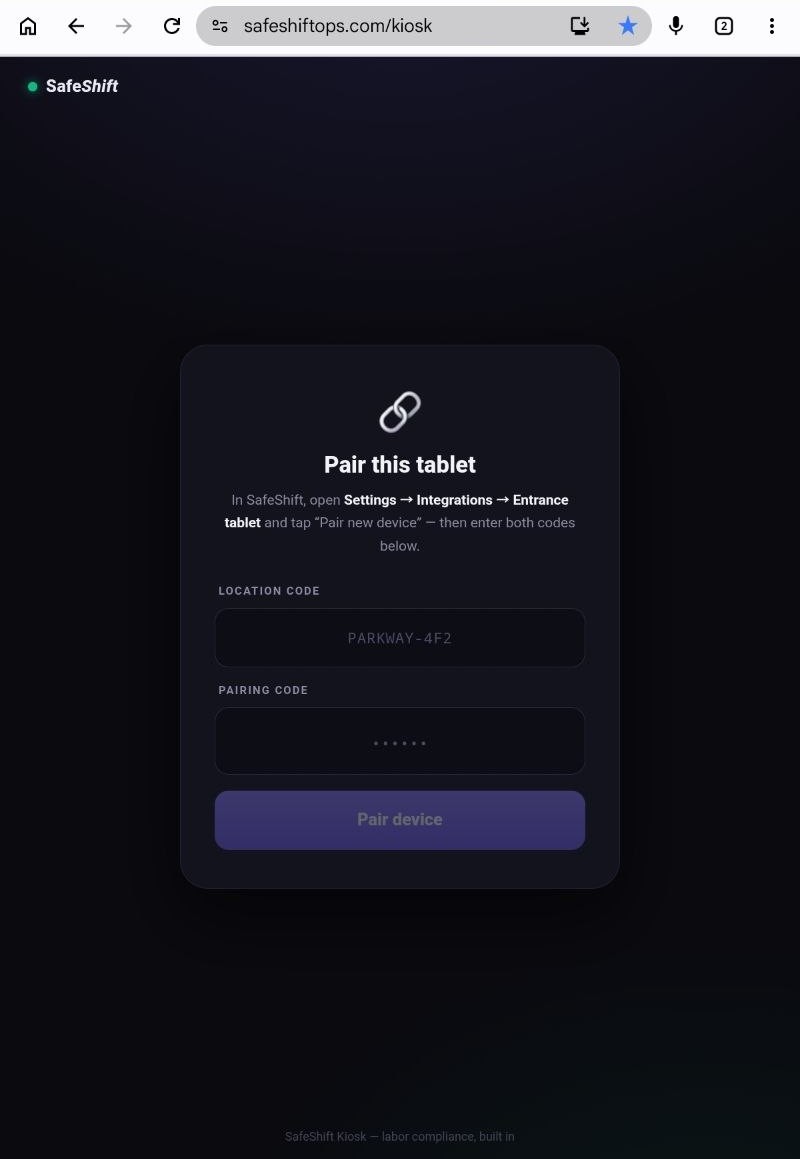
In the tablet's browser, go to safeshiftops.com/kiosk. Enter the location code and the pairing code, then tap Pair device. The tablet stays paired for a year — no daily login.
- 4
Install it as a full-screen app
In Chrome, tap the ⋮ menu → Install and create shortcut → Install. The kiosk gets its own icon and runs full-screen with no browser bars — it looks and feels like a dedicated punch clock. On iPad: Share → Add to Home Screen. On an Amazon Fire tablet, skip the built-in Silk browser (its home-screen shortcut just reopens the browser) — install the free Fully Kiosk Browser instead and set its start URL to
safeshiftops.com/kiosk(see the Fire-tablet FAQ below for the install steps — it isn't in Amazon's Appstore).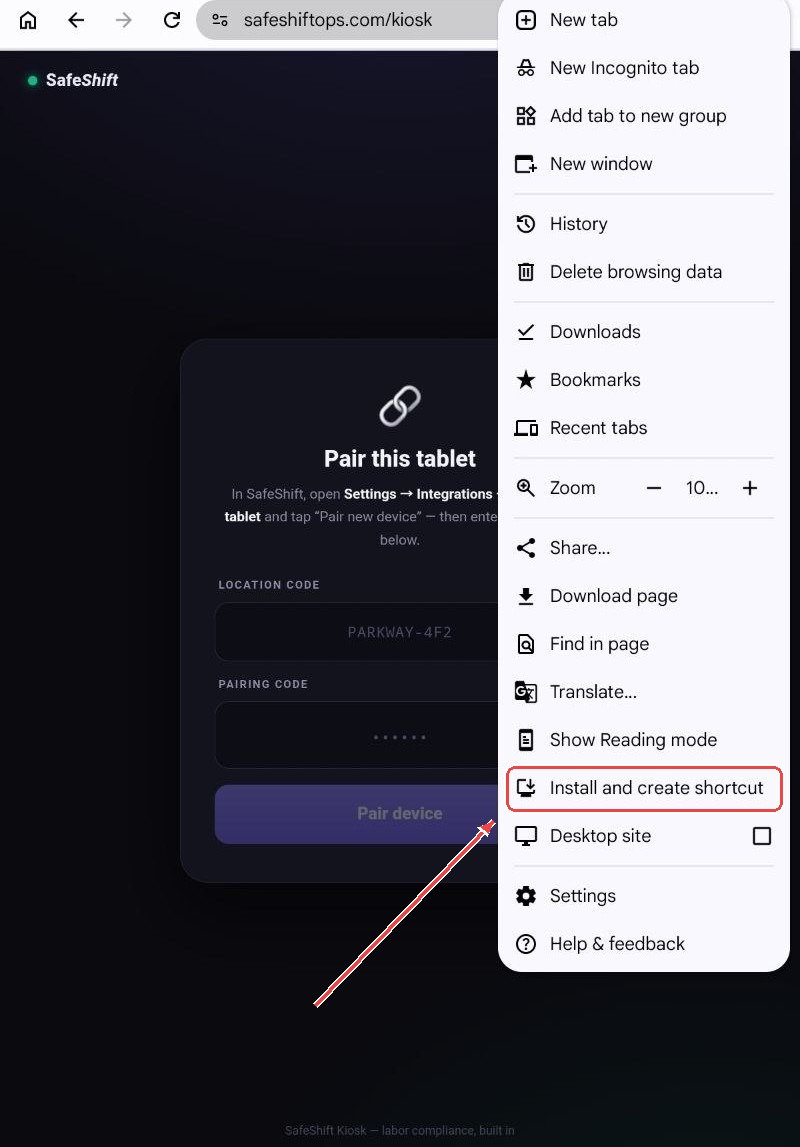
- 5
Employees punch with their PIN
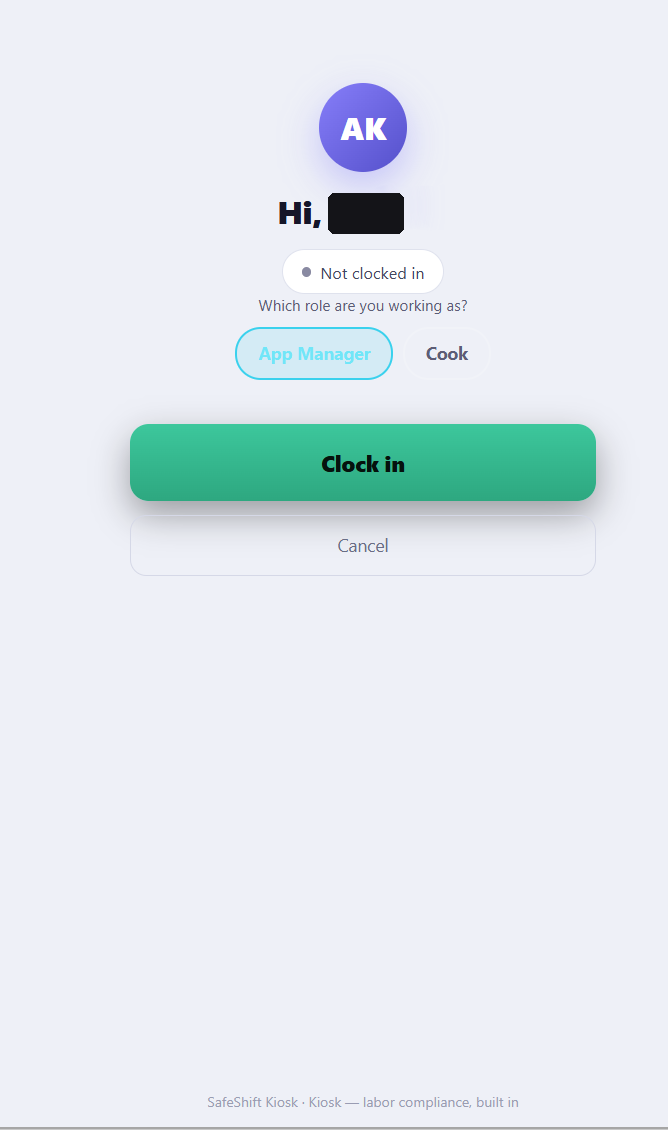
An employee enters their 4-digit PIN and the kiosk shows exactly the actions valid for them right now — clock in, start meal or rest break, clock out — plus a hint for their next break. Five wrong PIN attempts locks the device briefly to block guessing.
- 6
Managing PINs
Managers can reveal or reset any employee's punch PIN from the Team page (every reveal is audit-logged). Employees can also see their own PIN in the app under their profile.
- 7
Unpairing a tablet
Tap the ⚙ gear in the kiosk's top-right corner and enter a Manager PIN — that's the 6-digit manager code from Settings → My Account → Manager PIN (owners can unpair any location's tablet; App Managers only their own locations). Unpairing affects only that one tablet; other paired tablets keep working.
- 8
Keep punching when the Wi-Fi drops
Turn on Keep punching when Wi-Fi drops in the same kiosk card (it's on automatically for the first tablet you pair). Each tablet then keeps a copy of your location's roster — first name, last initial, and a scrambled PIN check, never the PIN itself — and when the network is down it still identifies the PIN, shows the right buttons, and saves the punch on the tablet. The confirmation screen says *Offline — saved on this tablet*, and the idle screen shows an amber *Offline — punches are saved on this tablet* bar with the count waiting. The moment the connection is back, the tablet sends everything and each punch is recorded at the time it was tapped — reminders, break monitoring and the evidence trail come out exactly as if it had been online. Every synced punch is marked *captured offline · synced* on Clock Station.
Good to know
- Multiple tablets per location are fine — pair each one with its own code (front door and kitchen, for example).
- If every tablet at a location goes quiet for 30+ minutes while shifts are running, SafeShift pushes managers a dead-tablet alert — you'll know before the punches pile up.
- Kiosk punches are identical to app punches for compliance: same reminders, same violation detection, same evidence trail.
- With offline punching on, keep the tablet paired and powered during an outage — the saved punches live on that tablet until it reconnects. Unpairing or wiping the browser while punches are still waiting loses them.
If something goes wrong
The Wi-Fi went down. Did we lose the punches?
Not if Keep punching when Wi-Fi drops is on for the location: the tablet saved them and sends them as soon as the connection returns (it retries on its own every 45 seconds). Each punch is recorded at the time it was tapped. If the switch is off, the tablet shows a red *Offline — punches can't be recorded* bar and employees should use the SafeShift app on their phone or tell a manager, who can enter the time afterwards as a time correction.
What does "offline punches need review" on Clock Station mean?
A few things can't be applied automatically when a tablet syncs: a punch older than 24 hours, a punch stamped in the future (the tablet's clock is wrong — check its date & time settings), or one that no longer fits (a clock-out for someone who was never clocked in, usually because someone else fixed the shift meanwhile). Those never touch the timeline — they wait on Clock Station with the reason so you can enter a time correction if the employee really worked. The same strip also lists punches that were applied but would have asked for a manager PIN (early clock-in, short break) — the tablet was offline, so nobody was asked; it's applied and flagged rather than lost. Add a short note and mark each one reviewed.
Can an employee punch offline at a location where they aren't set up?
No — the tablet only holds the roster for its own location, and PIN-clocked employees whose location uses POS clocking aren't in it either. The same rules as the online kiosk apply again when the punch syncs.
We're using an Amazon Fire tablet and the home-screen icon opens the browser.
That's Fire OS: the Silk browser's Add to Home Screen makes a bookmark, not an installed app. Install the free Fully Kiosk Browser — it is NOT in Amazon's Appstore (anything similar-looking there is a knockoff); on the tablet, open Silk, go to fully-kiosk.com, and download their official Fire OS APK. Fire OS will ask once to allow Silk to install unknown apps — approve it. Open Fully Kiosk, set the Start URL to safeshiftops.com/kiosk, and turn on Keep Screen On and launch-on-boot — the tablet becomes a true locked full-screen punch clock. One catch: pairing lives inside the browser app, so pair the tablet AGAIN inside Fully Kiosk (generate a fresh code) — the old Silk pairing won't carry over.
The pairing code expired before I finished.
Codes live 30 minutes and die on first use. Just click Pair new device again for a fresh one.
An employee's PIN “doesn't work.”
Reveal it on the Team page to confirm what it actually is. If the device is locked out from failed attempts, wait a minute and try again — lockouts clear on their own.
Can employees punch on the kiosk if their location uses POS clocking?
POS-clocked employees punch on the POS. If you're moving off POS clocking, use the mode switcher in Locations → Integrations — it previews exactly who flips to app/kiosk clocking.
We're on POS clocking — can we still collect break attestations at clock-out?
Yes — enable the Attestation station (Locations → Integrations, shown when POS is your clock mode) and pair a tablet next to the terminal. It's question-only: employees enter their 4-digit PIN right after punching out on the POS and answer the break questions — it can never record punches. Answers recorded there clear the mobile-app prompt automatically, and anyone who skips it is named in your end-of-day summary email.