📖 All guides
Get the mobile app
Download SafeShift from the App Store or Google Play — scan a QR code — for employees and managers alike.
One app serves everyone: employees see shifts, clock in, take breaks, and answer break confirmations; managers get schedules, team status, and compliance alerts on the go. It's free on both stores.
- 1
iPhone & iPad — App Store
Scan the QR code with the phone's camera, or search SafeShift on the App Store: [apps.apple.com/us/app/safeshift](https://apps.apple.com/us/app/safeshift/id6771940370).
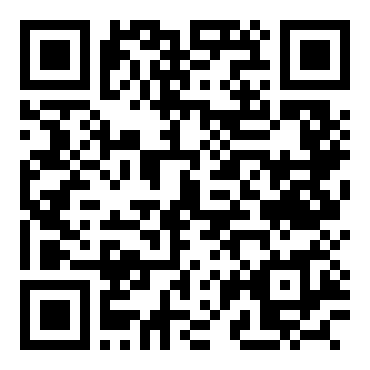
- 2
Android — Google Play
Scan the QR code with the phone's camera, or search SafeShift on Google Play: [play.google.com — SafeShift](https://play.google.com/store/apps/details?id=io.safeshift.app).
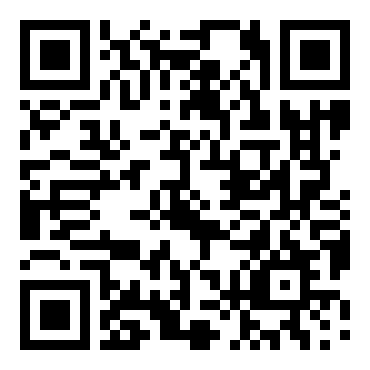
- 3
Employees: sign in from your invitation
The app invitation each employee received (email or text — step 4 of this path) contains their sign-in link and the same store links. Once signed in they'll see their shifts, punch in where app clocking is on, and get break reminders.
- 4
Managers: same app, manager view
Managers and owners sign in with their SafeShift login and get the manager experience — team status, schedule approvals, compliance alerts, and clock station tools — from the same download.
Good to know
- Employees on POS or kiosk-only clocking still benefit from the app: break confirmations, schedules, pay-period hours, and reminders all live there even when punching happens elsewhere.
- Print this page and post it in the back of house — the two QR codes are all a new hire needs.
If something goes wrong
An employee can't sign in after downloading.
They need an app invitation first — send one from the Team page (individually or Invite All). The invitation creates their login; the app alone can't.