📖 All guides
Tip declarations at clock-out
Tipped employees are asked what they took home in tips when they clock out — here's what to declare, why, and how to turn it off.
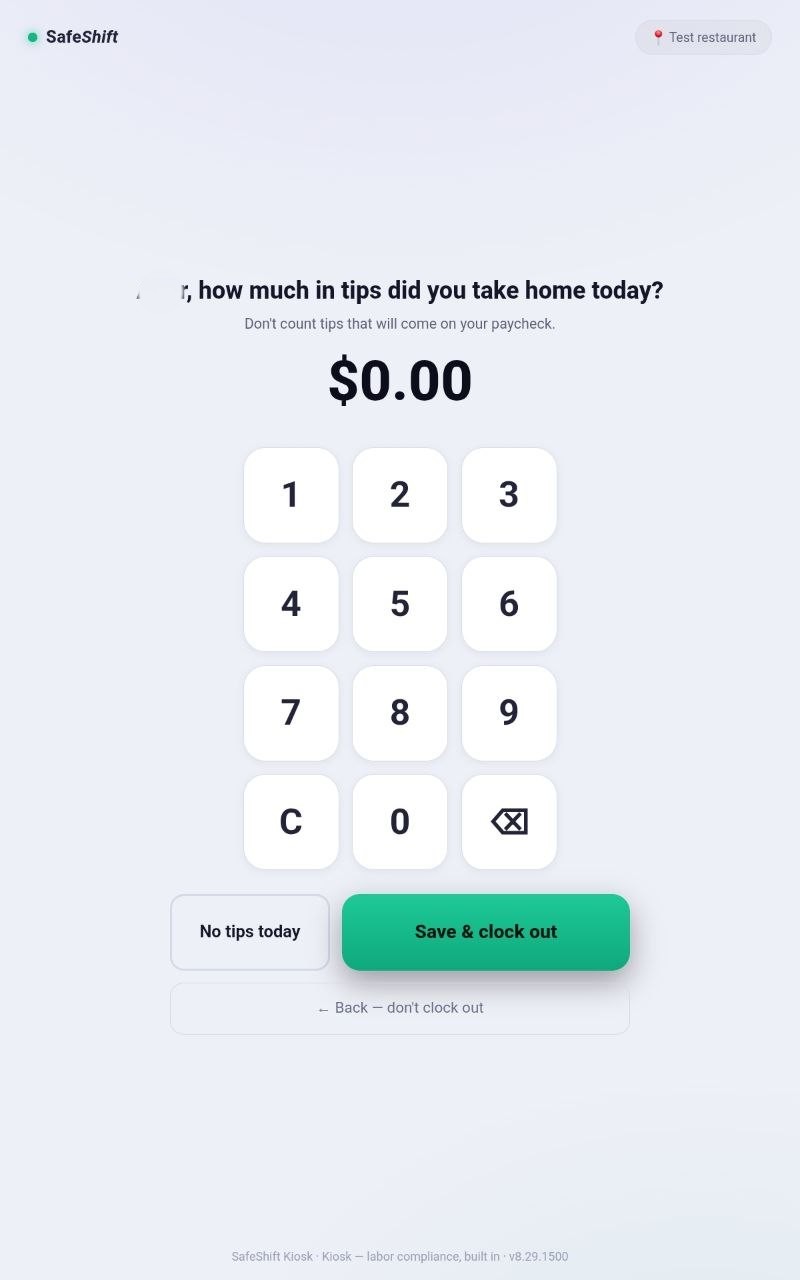
When an employee marked Tipped clocks out — at the kiosk or on the employee portal — SafeShift asks one question: *how much in tips did you take home today?* The answer becomes part of their pay record: it feeds payroll tip reporting and, in tip-credit states, the math that verifies minimum wage was met.
- 1
Who sees the question
Only employees with the Tipped checkbox on (Team page → open the employee → next to their role and pay rate). Everyone else clocks out with no extra screen.
- 2
What to declare: tips taken home — not paycheck tips
The number is the tips the employee physically leaves with today: cash tips, plus any card tips the house pays out nightly in cash. Tips that will arrive on a paycheck must NOT be declared — those already reach SafeShift from your POS or payroll, and declaring them twice would double-count the employee's tips in compliance math. The question's subline reminds employees of this every time.
- 3
No tips today? One tap
The No tips today button clocks the employee out without a declaration — nothing to type. Entering an amount and tapping Save & clock out records the declaration with the punch.
- 4
Turning the question off
Uncheck Tipped on the employee (Team page). The question disappears from their clock-out immediately — no other setting involved. If a whole crew shouldn't see it, uncheck it for each of them.
Good to know
- Declarations are evidence, not payments — SafeShift never moves tip money. The declared amounts appear in payroll-ready reports and tip-credit calculations.
- Employees can also declare (or fix) today's tips from the employee portal after clocking out.
If something goes wrong
An employee declared the wrong amount — can it be fixed?
Yes — they can edit today's declaration from the employee portal dashboard. The correction replaces the declared amount on the shift.
Why not declare ALL tips including card tips?
Card tips paid through a paycheck already flow into SafeShift from your POS or payroll. If the employee also declares them at clock-out they'd be counted twice — which in tip-credit states would overstate tips received and understate what the employer owes. Take-home only keeps the math honest.
Our house collects all cash tips into the pool — does the question fit?
Yes — when your tip policy pools everything including declared cash, the question automatically changes to "how much in cash tips did you collect today?" The employee declares what they're handing in, it joins that day's pool, and the distribution engine splits it under your policy.
We get tips from DoorDash/UberEats or catering — where do those go?
Enter them as House tips on Payroll → Tip Management: pick the day, the amount, and the source. Each entry joins that day's tip pool and splits with card tips under your pooling policy — managers never receive, and the split is cent-exact. House tips need a "Pool everything" policy (there's no pool to join under keep-your-own). Never enter mandatory service charges there — those are revenue, not tips.
We decide tips by hand — can I just type each person's amount?
Yes. On Payroll → Tip Management → This pay period, the Distribution this period table shows what each person receives under your policy for that location and pay period — hours, what they collected, and their share. Click Edit amounts: every amount becomes editable, prefilled with the policy split, and *start from hours / collected* gives you a different starting point. The total must still equal the pool (card and POS tips plus house tips), so save once *Still to enter* reads $0.00 — no money is lost or invented. Managers and owners are never listed (CA §351), and only people who worked the period can receive. Saving does not change your policy: the table shows *Edited · revision N*, the period heading says *split by edited amounts*, every other period keeps following the policy, each save is kept as a revision, Reset to policy puts the period back on the policy split, and once the period's payroll run is approved the amounts lock — a later change becomes an adjustment on the next run.