📖 All guides
Invite your team to the app
Send app invitations in bulk so employees can see shifts, get break reminders, and clock in from their phones.
Employees with the SafeShift app get push break reminders (no SMS consent needed), see their schedule, request swaps, and — if you use app clocking — punch from their phones.
- 1
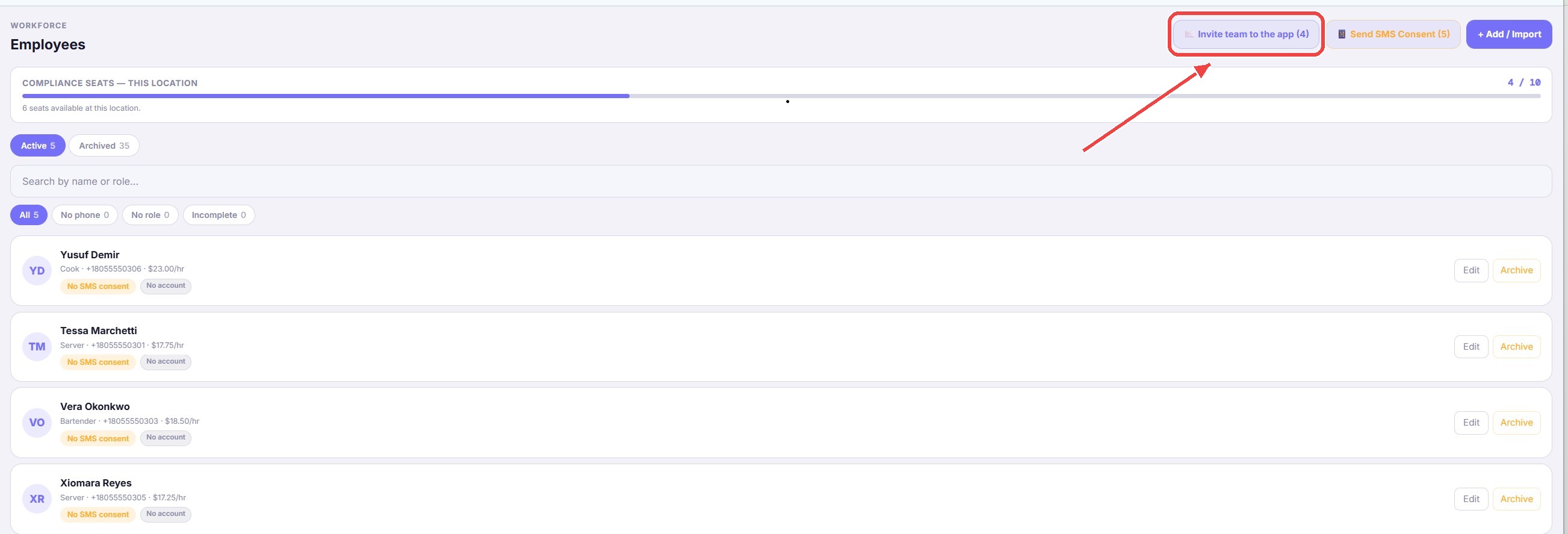
Click “Invite team to the app”
On the Team page, the Invite team to the app (N) button shows how many active employees don't have an account yet. Click it to preview exactly who will be invited before anything sends.
- 2
Send the invitations
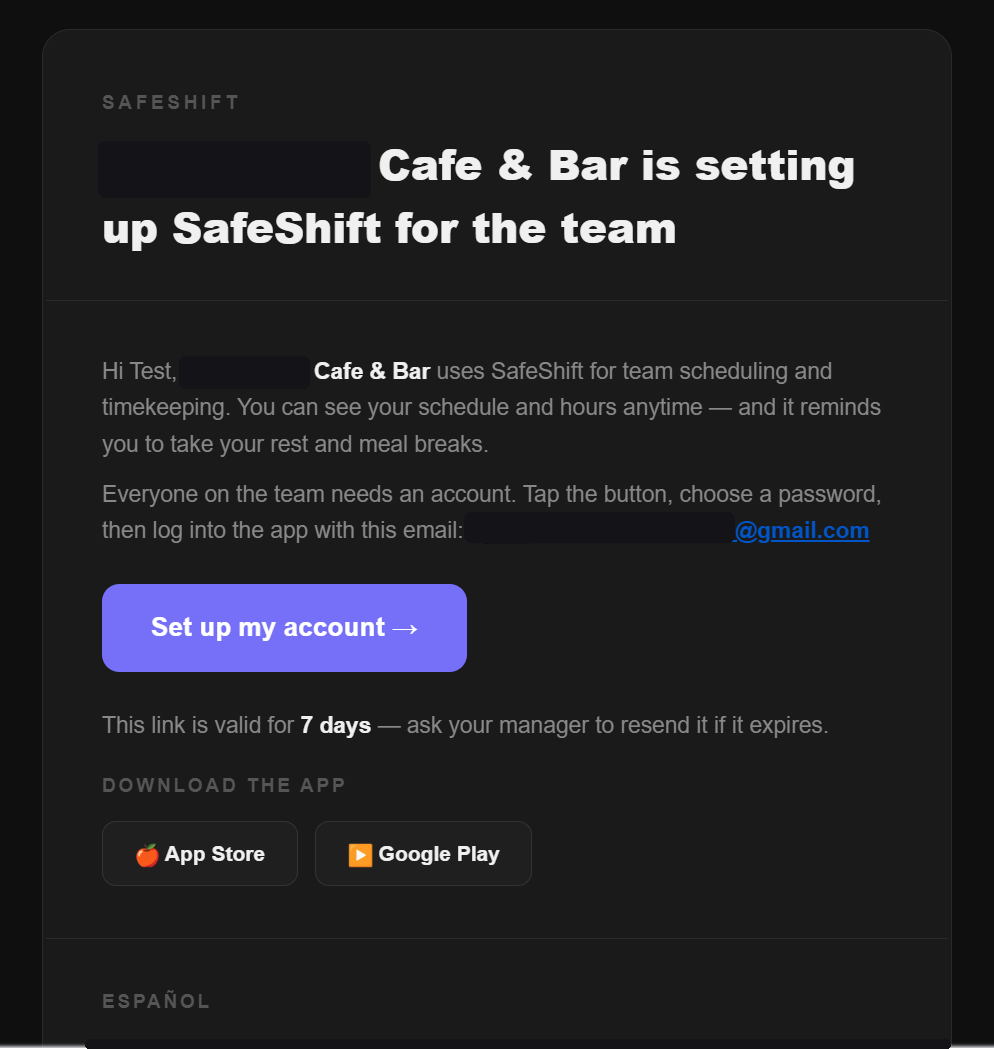
Each person gets an email (in English and Spanish) with App Store / Google Play download badges and a personal setup link that's valid for 7 days. They create a password and they're in.
- 3
Track who's in
Invites go by email, and — with the Also text the link box checked — by SMS too: people with a phone get a short link by text, and anyone who hasn't opted in to texts yet gets the SMS consent request with the link included, so one message does both jobs (a YES reply sends the link once more). The account chips on each row update automatically: No account → Invited → App account. SafeShift follows up by itself: anyone who hasn't set up their account gets a reminder email on day 3 and a last reminder on day 5, and the chip shows reminded ×1 / ×2. An invite that is still unused after 7 days flips to Unreached — invite expired: that person needs a word in person. Their expired link isn't a dead end either — the page it opens lets them request a fresh invite themselves, which restarts the 7 days. After someone sets their password, the page hands them straight to the app store (or opens the app if it's already installed). To see the whole picture, use the Invited · not signed up filter chip on the Team page, and the funnel strip at the top of the invite dialog shows Signed up / Invited / Reminded / Unreached / Never invited at a glance. Re-running the invite button only targets people who still haven't joined — nobody gets duplicate spam.
Good to know
- Employees without email can still punch on the kiosk tablet with their PIN — the app is optional for them.
- An employee's preferred language (English/Spanish) sets their app, web portal, kiosk prompts, and the reminders they receive by text and push. Set it on the Team page (edit or add an employee → Preferred language); the employee can change it any time in their app, and both sides always show the same value.