📖 All guides
Meal break waivers: request, sign, track
Send a California §512 meal break waiver from the Team page, where the employee signs it (app, portal or the text-message link), and how to tell when it is active.
Under California Labor Code §512, an employee whose shift is 6 hours or less may voluntarily waive their 30-minute meal break by mutual consent. SafeShift records that consent as a signed document: you request it once from the Team page, the employee reviews and signs it on their phone or in the portal, and the signed waiver (name, time, IP address) becomes part of the compliance record. Once it is active, short shifts stop prompting that employee for a meal break and stop recording a missed-meal violation for one — the reminders and the compliance engine both read the waiver.
- 1
Request the waiver from the Team page
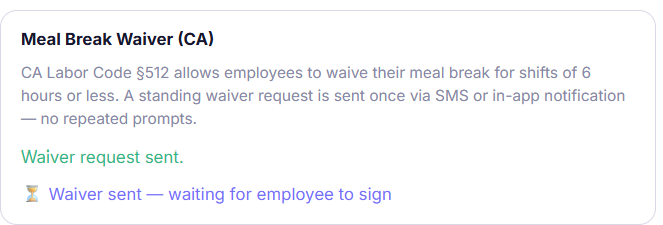
Open Team, click the employee, and find the Meal Break Waiver (CA) card. Click Send Waiver Request. The employee needs a phone number on file. The card then shows *Waiver sent — waiting for employee to sign*. If the employee's recent shifts suggest the waiver could not lawfully apply (for example they regularly work over 6 hours), the card warns you — it never blocks the request, but the warning is kept with the record.
- 2
How the employee is told
Three channels at once. A text message with a signing link goes to employees who have given SMS consent. A push notification goes to anyone with the app installed. And a Signature required card appears on their Compliance tab — in the mobile app and in the employee portal — until they sign. The card is on Compliance, not Documents: it is a consent record about breaks, so it lives next to their break history.
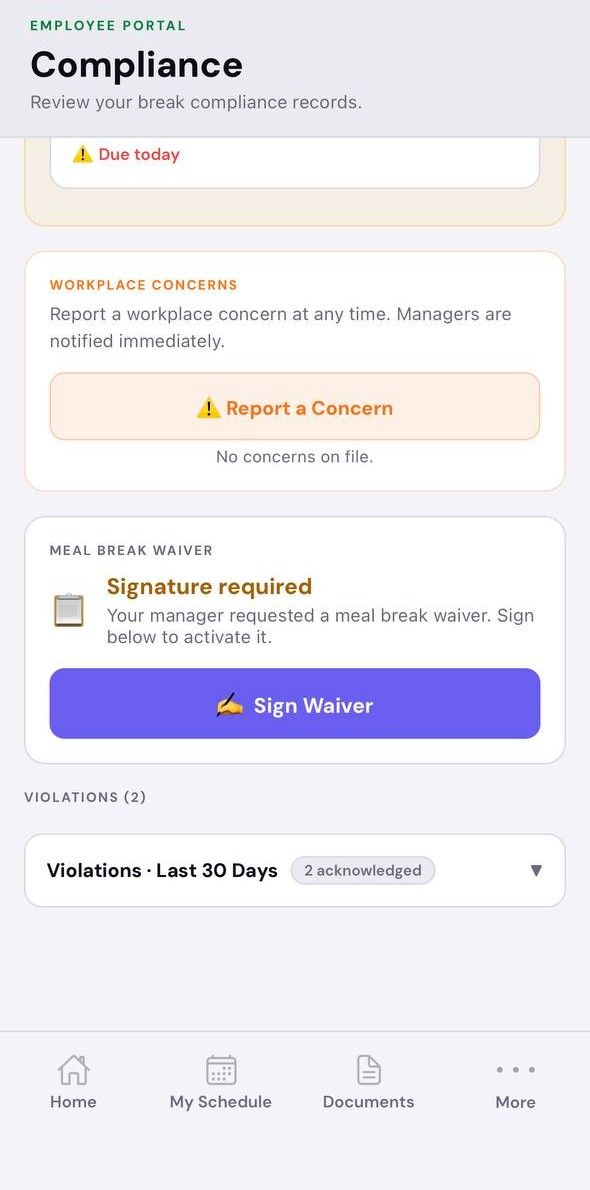
The card lives on the Compliance tab of the employee app and portal — not under Documents. - 3
What the employee sees and signs
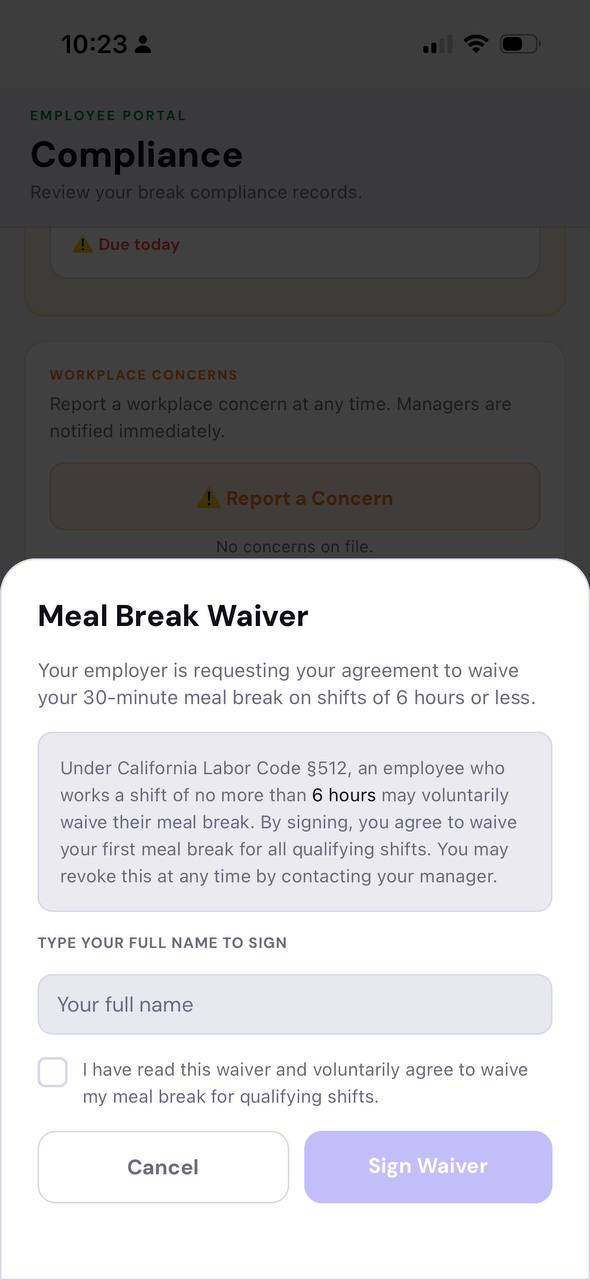
On the Compliance tab the card reads *Signature required — your manager requested a meal break waiver*. Tapping Sign Waiver opens the waiver text: who is asking, the 6-hour rule, and that they can revoke at any time by telling their manager. They type their full name, tick *I have read this waiver and voluntarily agree*, and tap Sign Waiver. Employees without the app sign the same document from the text-message link in any browser. The app and portal screens are in Spanish when the employee's language is set to Spanish; the text-message signing page is in English.
- 4
Track it on the Team card
The card reads *Waiver sent N days ago — waiting for employee to sign* until they sign, then Waiver signed with the date. Click Send signing link again if they lost the text or did not have the app yet — signing links stop working 30 days after the last send (the card turns amber and says so), and a resend refreshes the link, sends a new text and push, and makes the Sign Waiver card in their app work again. Withdraw request cancels an unsigned request; Signed on paper — mark on file records a paper or external waiver and withdraws the open request in one step (the withdrawn request stays on record, pointing at the waiver that replaced it); Remove waiver ends an active one. Every one of these keeps the row as evidence, never deleted. A link nobody signs lapses 30 days after the last send: the card then reads *lapsed* and offers a new request or the on-file box.
- 5
Chasing unsigned links from the Command Center
Compliance → Command Center shows a *waiver links unsigned 7+ days* card for every signing link that has sat unsigned a week or more. Each line offers Resend link, Mark on file (they signed on paper) and Decline; with several open, Resend all and Decline all act on every line at once and report who was reached and who was skipped (no phone number, signed in the meantime). Above three requests the card folds to one line — Show opens it, and your choice is remembered on that browser; Open in Team → lists the same people on the Team page filtered to *Waiver: Pending*. Lines leave the card as soon as they are resent, recorded, declined, or lapse at 30 days.
- 6
Already have signed waivers? Back-fill them
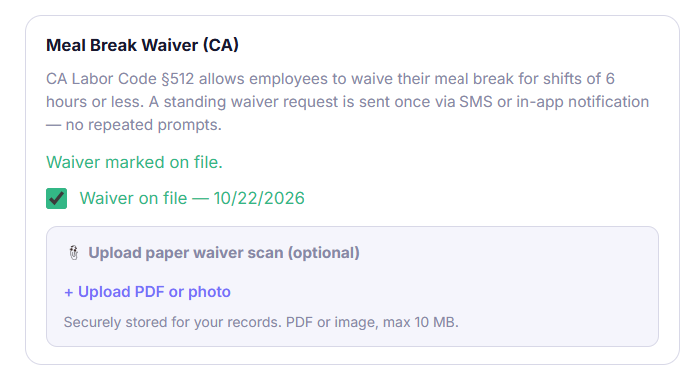
Moving from paper or from another system, you do not need to re-collect signatures. On the employee's Meal Break Waiver (CA) card tick Waiver on file. SafeShift records an active waiver immediately, dated today and marked *On file — recorded by <your name>* — no text or notification goes to the employee, and reminders and the compliance engine treat it exactly like an e-signed one. Then, optionally, click Upload PDF or photo under *Upload paper waiver scan* to attach the hard copy's scan or the digital form you already hold (PDF or image, up to 10 MB). It is stored securely with the record; View opens it and Remove takes the scan off while the waiver stays on file. Untick the box to end the waiver — the row is kept with its dates, never deleted.
- 7
Employee-initiated requests
Employees can also start the request themselves from their Compliance tab (Request Meal Break Waiver): their ask shows on the Team row as *Asked for a waiver* until you click Send signing link (or Decline). An employee ask you never act on lapses after 14 days — send a fresh request if you want it after all.
Good to know
- A waiver covers shifts of 6 hours or less only. On a longer shift the meal break is still owed and SafeShift still reminds and records it.
- One active waiver per employee: the card refuses a second request while one is pending or signed.
- The 'Asked for a waiver' badge on the Team list and the Compliance tab badge in the employee app both clear on their own once the waiver is signed.
- Signed waivers appear in the court-ready compliance report for the employee, with the signature name, time and IP address.
If something goes wrong
My employees say they can't find the waiver.
Send them to the Compliance tab of the employee app or portal (not Documents) — the *Signature required* card sits there. If the request was sent more than 30 days ago the signing link has expired — the Team card says so in amber. Click Send signing link again: the employee gets a fresh text and push, and the card in their app works again. Employees who have not given SMS consent get no text, only the push and the in-app card, and an employee without the app can only sign from the text link — so for kiosk-only staff, make sure consent is on or set up their app login.
Does the waiver stop break reminders?
On shifts of 6 hours or less, yes — a signed waiver means no meal reminder and no missed-meal violation for that employee. Rest breaks are unaffected, and shifts over 6 hours behave exactly as before.
We collected waivers on paper (or in another app) before SafeShift. Do employees have to sign again?
No. Tick Waiver on file on each employee's card and, if you have it, upload the scan or the existing digital form. The waiver is active from that moment. Keep the originals too: the upload is a convenience copy for your records, and the on-file record names the manager who entered it and the date.
Can the employee change their mind?
Yes, at any time. They tell you, and you click Remove waiver on the Team card. The revoked waiver stays on record with the date; meal reminders resume on the next shift.