📖 All guides
Send announcements
Broadcast to your whole team or a targeted slice — in-app with push, SMS, and email, with one attachment.
Announcements reach your team where they actually look: the app inbox (with a push notification), text messages, and email. You choose who it goes to — everyone, one location, or just certain access levels — and the composer shows you exactly how many people it will reach before you send.
- 1
Compose
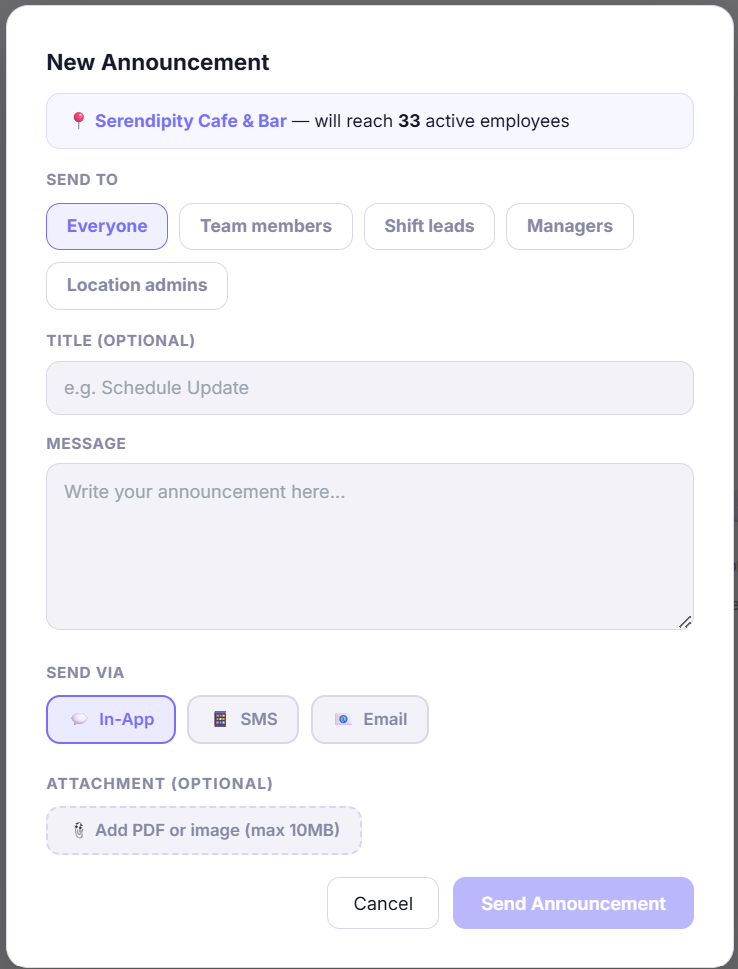
Go to Inbox → Announcements → + New Announcement. The banner at the top shows the audience — it follows the location picked in the sidebar (All locations = everyone), and updates live as you narrow it.
- 2
Pick who it goes to
Send to defaults to *Everyone*. Tap chips to narrow by access level: Team members, Shift leads, Managers, Location admins — in any combination. This is the *access level* (what their login can do), not the job role. Example: All Locations + Managers + Location admins reaches your management team at every site and nobody else.
- 3
Pick the channels
In-App stores it in every recipient's inbox and sends a push notification to their phones. SMS texts everyone who has texting consent on file. Email goes to everyone with an email address — and it's the one channel that carries an attached file directly.
- 4
Attach a file (optional)
One PDF or image, up to 10MB — a new menu, a policy PDF, a schedule photo. In-app readers open it right in their inbox; the email carries the actual file; the SMS says “📎 view it in the SafeShift app” and points them there.
Good to know
- SMS never carries the file itself — that's deliberate. Picture messages are unreliable across carriers and get filtered as spam, so the text points people at the app where the file always opens.
- If your filter matches nobody, the Send button disables and the server refuses — an announcement can never silently go to zero people.
- The recipient count in the banner is exactly who gets it: active employees only, scoped to the picked location and Send-to chips.
If something goes wrong
My employee didn't get a push — why?
Push needs a registered device: they must have logged into the mobile app and allowed notifications at least once. Employees without the app still get the inbox message (visible next login) plus any SMS/email copies you selected.
Can I send to just the cooks or just the servers?
Yes, via departments: pick a specific location in the sidebar and department chips (Front of House, Back of House…) appear under Send to — set them up first in Settings → Locations. Job-title audiences (“all Servers”) remain on the roadmap.