📖 All guides
Connect Toast POS to SafeShift
Create Standard API credentials in your Toast admin, then paste the Client ID, Client Secret and Restaurant GUID into SafeShift — clock-ins start syncing within minutes.
Show transcript
Connecting Toast takes three values from your Toast admin. Sign in to Toast as an admin, scroll down the left sidebar, and open Integrations. Under Toast API access, open Manage credentials. If a credential already exists here, you can reuse it, as long as it has both scopes and your location. Click Create new credentials and choose Standard API. It is read only: SafeShift can read your employees and their time entries, and nothing else.
Name the credential SafeShift so you recognise it later. Now the step that matters most. Open API scopes and tick both of these: labor read, and labor dot employees read. With only one of them, SafeShift can sign in, but Toast refuses either your punches or your roster, and the Integrations card reads connection broken.
Under Locations, open the list and tick the restaurant this credential is for, then click Select locations. Every Toast restaurant needs its own credential, connected to its own SafeShift location. Then click Confirm. We stop here in this recording, because this account already has a credential. Open the credential. Copy the Client ID. The Client secret is shown only once, right after you create it, so paste it into SafeShift straight away. If you lose it, Rotate issues a new secret and the old one stops working, so paste the new value into SafeShift as well.
The third value is the Restaurant GUID. Toast emails it to the account holder, the email address on the Toast account, in a message titled Standard API Access credentials have been activated. It is also printed at the bottom of these credential pages, in the line we have blurred here. Now switch to SafeShift. Open Locations, pick the location that runs on Toast, and open its Integrations.
Choose the POS Integration card, then Toast POS. The card lists the same Toast steps, and below them are the three fields. Paste the Client ID, the Client secret and the Restaurant GUID, and click Save Credentials. SafeShift tests the connection right away and pulls today's clock events. From then on it checks Toast every five minutes.
Next, open Team and click Import Team from POS to bring in your roster. The first Toast punches appear on the Clock Station within five minutes, and break monitoring starts from that clock-in. And this is how the card looks once it is connected: a green Connected badge, the time of the last sync, the connection health, and the location it is tied to. Sync Clock Events pulls punches on demand. If Toast ever refuses a call, the card shows the exact error here instead of Healthy, so a revoked credential is never silent.
When your team punches on Toast terminals, SafeShift reads those punches from Toast and runs break monitoring on them — nothing changes for employees. The connection uses Toast's Standard API, which any Toast admin can switch on without a partner approval. You will create one set of credentials in Toast, Toast will email a Restaurant GUID to the account holder, and you paste all three into SafeShift. It takes about ten minutes.
- 1
In your Toast admin, open Integrations
Sign in to the Toast web admin as an admin (not a terminal login). In the left sidebar scroll down to Integrations and click it. If you manage more than one restaurant, pick the restaurant at the top first — each Toast restaurant gets its own credentials and its own SafeShift location.
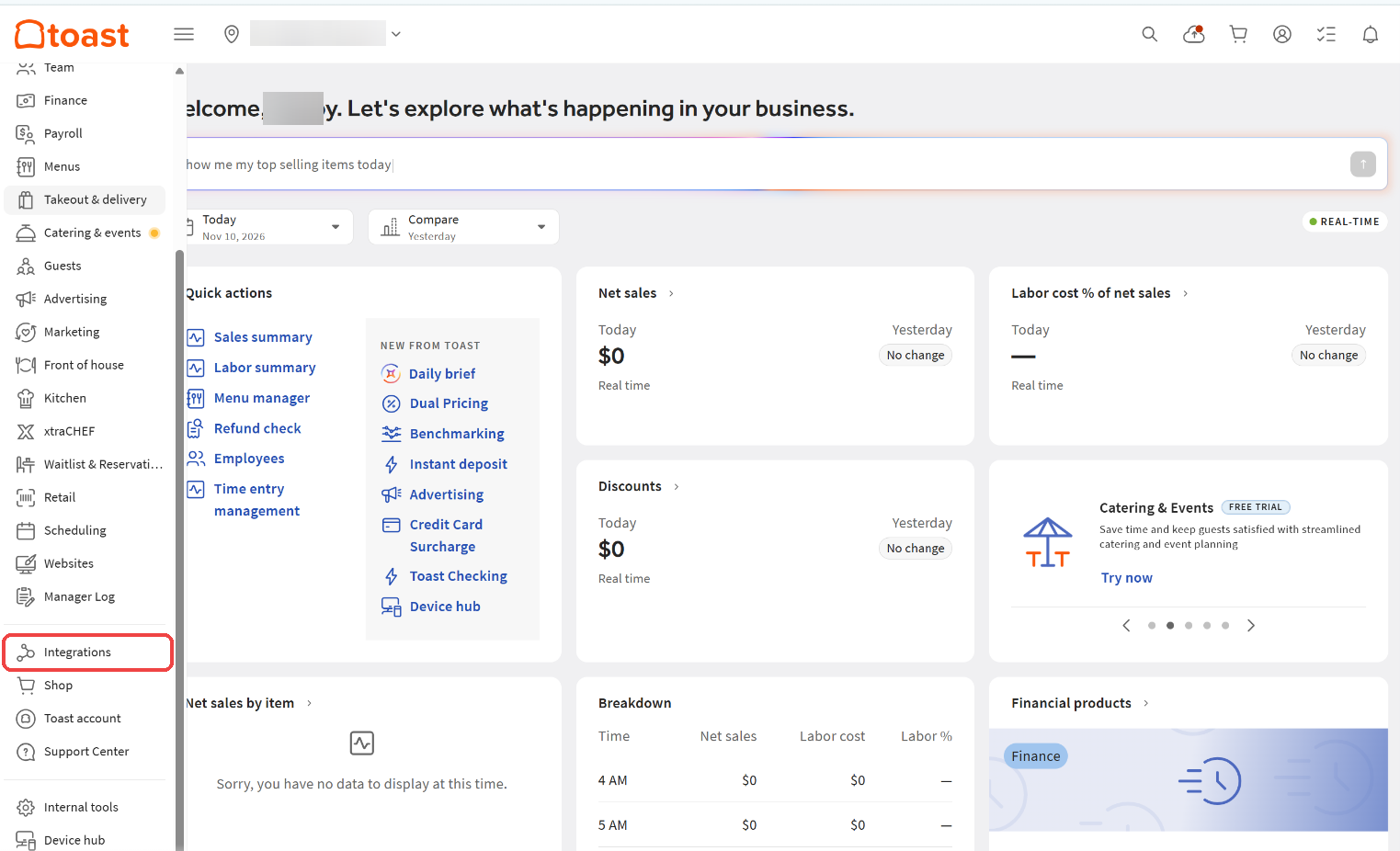
- 2
Click Manage credentials
On the Integrations page, under Toast API access, click Manage credentials. This is Toast's own credential page — SafeShift never sees your Toast password.
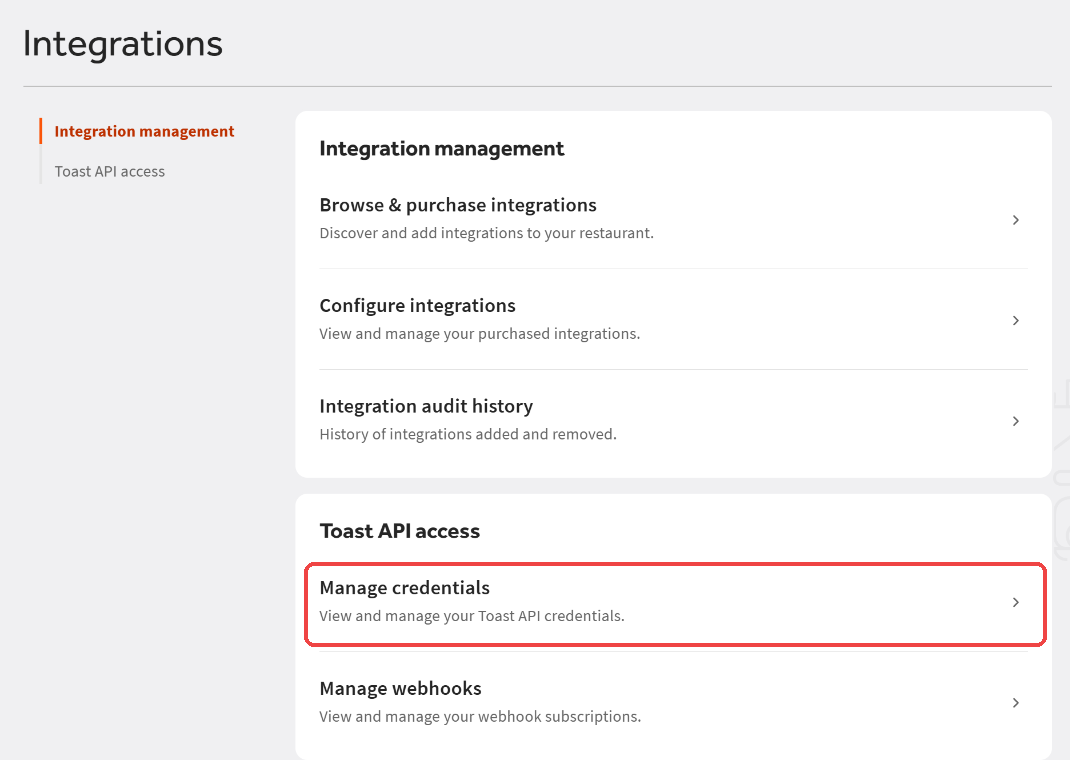
- 3
Create Standard API credentials for SafeShift
At the top, click + New credentials and choose Standard API. Name the credential
SafeShiftso you recognise it later. Under API scopes pick both of these, exactly as Toast lists them: `labor:read` (clock-ins and clock-outs) and `labor.employees:read` (your roster). Picking onlylabor.employees:readis the most common mistake: SafeShift can sign in and see your team, but Toast refuses the time entries and the Integrations card reads *connection is broken*. If your Toast account holds several locations, tick the location(s) this credential is for. Click Confirm. - 4
Copy the Client ID and Client secret
Toast now shows the credential. Use Copy next to Client ID, then reveal and copy the Client secret — Toast shows the secret once, so paste it into SafeShift (or a password manager) right away. If it is lost, use Rotate to issue a new one and paste the new value into SafeShift.

- 5
Find the Restaurant GUID in Toast's email
A few minutes after you confirm, Toast emails the Toast account holder (the email address on the Toast account — not necessarily you) a message titled *Standard API Access credentials have been activated*. The table in it lists each location with its Restaurant GUID — a long code like
90aa1d7f-2eab-…. Copy the GUID for the location you are connecting. If the account holder is someone else, ask them to forward that email.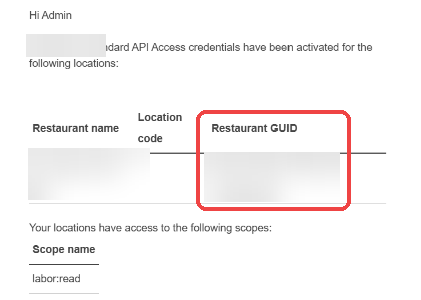
- 6
Paste all three into SafeShift and save
In SafeShift go to Locations → Integrations for the location, choose the POS Integration clock card, then the Toast POS tab. Paste the Client ID, Client Secret and Restaurant GUID, and click Save Credentials. SafeShift tests the connection immediately and pulls today's clock events; from then on it checks Toast for new punches every five minutes. Your employees are not imported yet — that is the next step, and punches by people who are not on your SafeShift roster are not recorded.
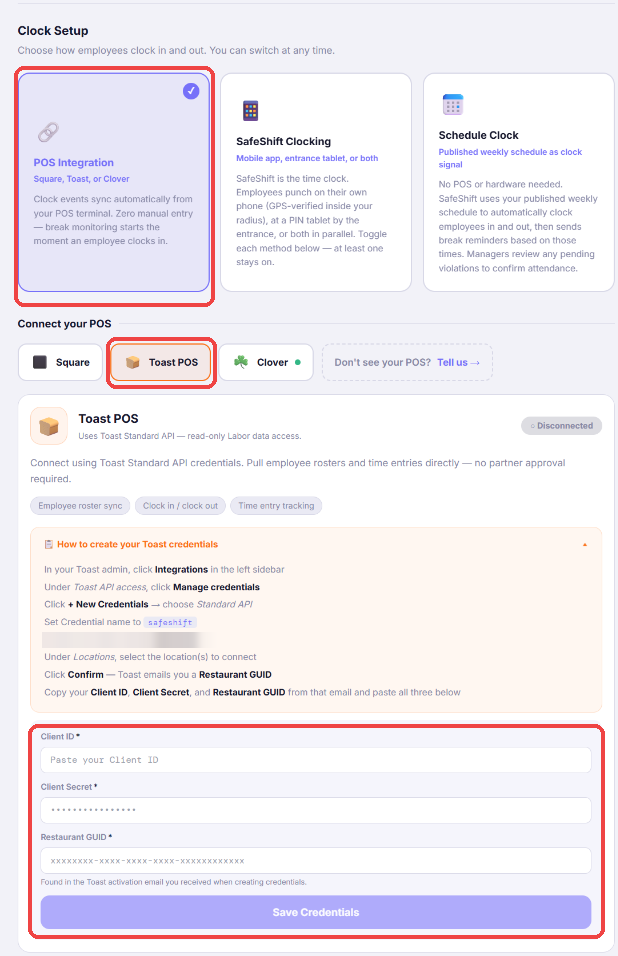
- 7
Import your team from Toast
Open Team. A banner says *Toast POS connected — clock events syncing automatically. Click Sync POS to review and import your employee roster.* Click ↻ Import Team from POS. SafeShift shows every employee on the Toast roster, marks who is Already in SafeShift (matched by email or phone), and lets you untick anyone you do not want — a register or kitchen-display login, a former employee. Review the matches, then click Import selected employees. SafeShift never imports a roster silently: you choose who comes in, and the import respects your plan's seat count.
- 8
Check the first punches
Add an hourly rate on the Team page for anyone you want in payroll reports (Toast roles come across; wages do not). The next time someone clocks in on a Toast terminal, they show up on the Clock Station within five minutes and break reminders start from that clock-in. If a punch arrives from a Toast employee who is not on your SafeShift roster, no shift is recorded and SafeShift notifies you to import them — run Import Team from POS again whenever you hire. The Integrations card shows the time of the last sync and, if Toast ever refuses a call, the exact error — so a revoked credential is never silent.
Good to know
- The first rest break is not due until two hours into a shift, so the five-minute sync has no effect on reminder timing.
- Breaks punched on the Toast terminal sync too, and SafeShift maps Toast's break names to meal or rest under Locations → Integrations → Break mappings.
- A clock-out a manager fixes in SafeShift stays fixed — a later Toast sync never overwrites a manual correction.
- Several restaurants under one Toast account? Connect each one to its own SafeShift location with its own credential and GUID. A person who works at two of them is matched by email or phone: within the same legal employer they stay one employee who works at both sites; across different legal employers SafeShift keeps a linked record per employer (one record never spans two employers), so the second record is not a duplicate.
If something goes wrong
Toast says the credentials are "no longer associated to any locations".
That credential was created without a location ticked, or the location was removed from it. Open the credential in Toast, click Edit Location IDs and add the restaurant, or create a new credential with the location selected and paste the new values into SafeShift.
I never received the Restaurant GUID email.
Toast sends it to the account holder's email, not to the admin who created the credential. Ask the account holder to look for *Standard API Access credentials have been activated* (check spam). If nobody can find it, SafeShift support can help you locate it on a quick call.
The card says "connection is broken" and shows 403 / "not permitted to access this resource".
Your Client ID and secret are fine — SafeShift signed in. Toast then refused labor data for this restaurant (its code 10010), which means the credential is missing a permission. In Toast open Integrations → Manage credentials → the SafeShift credential and check two things: both scopes are on it — `labor:read` (time entries) and `labor.employees:read` (roster); with only labor.employees:read you get exactly this error — and this restaurant is on the credential. Then confirm the Restaurant GUID in SafeShift is the one Toast emailed for this restaurant, click Edit on the Toast card, save the credentials again, and click Sync Now. The banner clears on the first successful sync.
The Integrations card shows a sync error.
A 401 or 403 means Toast rejected the credential — usually a secret that was rotated or a credential deleted in Toast. Create or rotate the credential and paste the new secret. Anything else is a temporary Toast outage; SafeShift retries every five minutes and catches up on its own. After a full day of failures (or two revoked answers in a row) the connection is marked broken and retried hourly until it recovers — fixing the credential clears it on the next successful sync.
Can employees still clock in on the SafeShift app or the tablet?
With POS Integration as the clock mode, Toast is the time clock and the app does not offer clock-in buttons. You can still pair an attestation station tablet next to the terminal so employees answer their break questions at clock-out.