📖 All guides
Send a policy for everyone to sign (Policy Campaigns)
Roll out a new or updated policy — smoke-free workplace, handbook update, arbitration agreement — to your whole team, and see exactly who has signed.
A Policy Campaign sends one document to many existing employees at once and tracks every signature. Use it whenever a policy is new or changes — a smoke-free / drug-free workplace policy, an updated handbook, a new arbitration agreement. (New hires get their documents through onboarding; campaigns are for people already on the team.) Employees read and sign on their phone or on the web; you get a progress bar and a per-person list of who signed and when.
- 1
Open Documents → Policy Campaigns → + New Campaign
Pick the location in the sidebar first if you have more than one — the campaign opens scoped to it (you can still choose All locations in the form). Then Documents → Policy Campaigns → + New Campaign.
- 2
Title and message
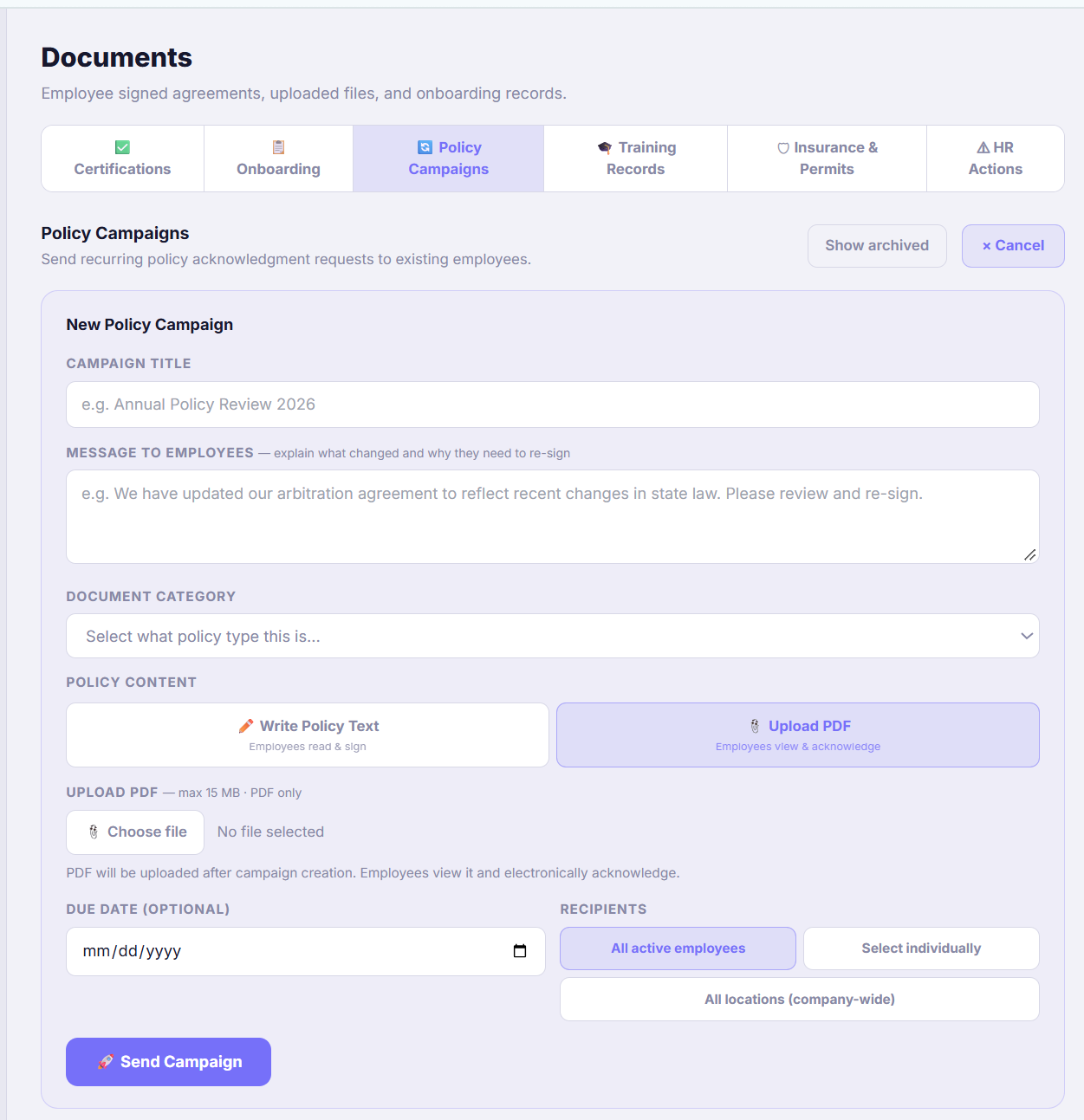
The title is what employees see in the app and in the push notification (Smoke-Free, Vape-Free, Drug-Free Workplace Policy). The message is a short note on why they're being asked — keep it to a sentence or two: We've adopted a smoke-free and vape-free policy for all our locations. Please read it and sign by Friday.
- 3
Choose the document category — and where the content comes from
If you already uploaded the PDF under Settings → Documents (as a custom document type), just pick it in Document category: the form says Uses the PDF already uploaded for … and there's nothing else to write or upload. If this is a brand-new policy, pick the closest category, then under Policy content choose Upload PDF (max 15 MB) or Write Policy Text to type it in. Uploading creates the document in one step — no need to set it up under Settings first.
- 4
Due date and recipients, then send
A due date is optional — it shows on the employee's card and on yours. Recipients: All active employees at this location, Select individually to pick names, or All locations (company-wide) to reach every location at once. Click 🚀 Send Campaign.
- 5
What employees see
Each recipient gets a push notification (📋 New Policy Update; a text message if they have no app installed but have opted in to SMS). The policy appears under Documents → Policy Updates in the SafeShift app and the web portal, with your message on top. They open the PDF, type their name and sign — or acknowledge, for documents that only need an acknowledgment — and can reopen the signed copy any time afterwards (View PDF).
- 6
Track who has signed
The campaign card shows signed / total with a progress bar. ▾ Details lists every recipient with Signed by, Date, and a link to the signed PDF; the names without a date are the ones still outstanding. Signed copies are tamper-evident records — the exact PDF the employee saw is stored with a hash and their typed signature, name, time and IP address.
- 7
When everyone has signed
Leave the campaign in place — it's the record. When you no longer want it in the list, Archive it; archived campaigns stay readable under Show archived, and employees keep access to what they signed. Nothing is ever deleted.
Good to know
- One policy, one campaign. If the policy exists in English and Spanish, upload one bilingual PDF — employees get the same document either way, and you track one list instead of two.
- For a company-wide policy, send it once with All locations rather than once per location — one list to follow up on.
- Changed the policy later? Send a new campaign; the old signatures stay on file as the record of what people agreed to at the time.
If something goes wrong
Someone hasn't signed — can I remind them?
Open ▾ Details on the campaign to see who's outstanding and mention it at the shift huddle, or send them an announcement from Inbox. The policy stays at the top of their Documents until they sign; a due date on the campaign shows there too.
Can employees sign on the kiosk tablet?
No — policies are signed in the SafeShift app or the web portal, where the employee is logged in as themselves. An employee without the app can use the web portal from any phone or computer with their login; the Team page shows who hasn't set up their account yet (Invite team to the app).
What's the difference between a campaign and onboarding documents?
Onboarding packets go to new hires before their first shift (WTPA notice, W-4, I-9, handbook). Campaigns go to existing employees when something is new or changes. The same custom documents can be used in both — upload the PDF once under Settings → Documents and it's available as an onboarding item and as a campaign category.
Does a new hire who starts after the campaign get it?
Not automatically — a campaign goes to the people on the team when you send it. Add the policy to your onboarding packet so new hires sign it as part of their paperwork.