📖 All guides
Time off & PTO
Set up PTO on the Paid Time Off page — which locations offer it, advance notice and blackout dates, who is eligible and their allowance — then approve requests with balances and coverage in view.
Employees request time off from their app or portal; you approve from the web with everything that matters in view — their remaining balance, schedule conflicts, coverage that day, and whether the dates cross a blackout window. Balances are computed automatically, and an approval can never take a balance below zero.
- 1
Set the rules on the Paid Time Off page
Pay & Tips → Paid Time Off is the one home for PTO rules. For each location: switch PTO offered on or off (the same switch also sits on Settings → Locations), set days' notice (requests inside the window are refused at submission; sick leave is never gated), and manage Blackouts — date ranges like Memorial Day weekend where PTO requests are blocked.
- 2
Decide who is tracked and their allowance
The Who gets PTO roster on the same page lists everyone at the location. Tick Eligible for the people who may request PTO (unticked people keep Sick and Unpaid), and set each person's annual allowance in hours. Balances count down as approved time is taken and reset each January — there's nothing to reconcile by hand. Blank allowance = requests are not limited and no balance is shown. Filters show who is eligible but has no allowance yet.
- 3
Or let PTO accrue as they work
On each location card, How balances work offers two models. Annual allowance is the default above. Accrue as they work earns PTO from real punched hours — you set the rate (hours per 30 hours worked; the page shows the ≈ days-per-year equivalent for a 40-hour week), a balance cap where accrual pauses, and an optional waiting period before new hires can use it. Balances build nightly, carry across years, and are deducted when a request is approved (revoking restores them). Use Set balance in the roster to bring in each person's current balance from your previous system — the number you type becomes their balance. In California vacation is earned wages, so a cap is allowed but nothing is ever forfeited; SafeShift has no use-it-or-lose-it switch anywhere.
- 4
Employees request from their phone
In the employee app or portal they pick dates, see their own remaining balance before submitting, and can cancel a pending request themselves — no manager round-trip for a change of plans.
- 5
Managers hear about it right away
A new request pushes to the phone of every manager at every location the person works — owners, managers, location admins and shift leads — and emails the managers and owner (shift leads run the floor and get the push only). Someone who works at two locations, or holds a linked profile at two companies in the same account, is one person: both locations hear about it. A sick request starting today arrives as a Sick call-out so the floor can react. The employee's note is in the email and on the review card only, never on a lock screen. Each person is notified once per request, and the daily digest still lists anything left pending. Managers can turn either channel off under Settings → Account → Notifications, and a manager on Daily digest mode gets neither in real time — the digest lists it (a same-day sick call-out still goes out to everyone). If a location uses on-duty alerts only, the push goes to whoever is clocked in (owners always).
- 6
Approve with context
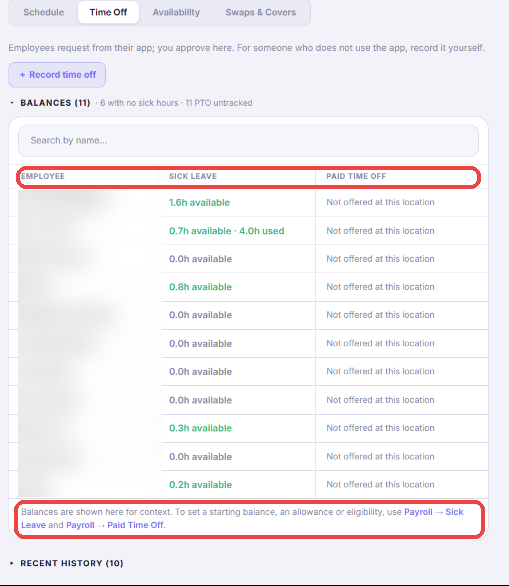
Requests land in Schedule → Time Off (Shift Leads can review them too). Each card shows the balance impact, scheduling conflicts, who else is off, and a 🚫 flag when the dates overlap a blackout window — warnings inform, you decide. The Balances section on the same tab shows the whole roster's sick and PTO balances at a glance (read-only — they are set on the Payroll pages). Who approves: the managers of the location the request was filed at — the employee's home location, whose balance it draws. Every other location the person works sees the same card read-only with a 🔒 *filed at …* tag, and their schedule grid shows the days as time off, so nobody schedules them into it. A manager assigned to both locations approves at either. Owners approve anywhere.
- 7
Record it yourself for someone who doesn't use the app
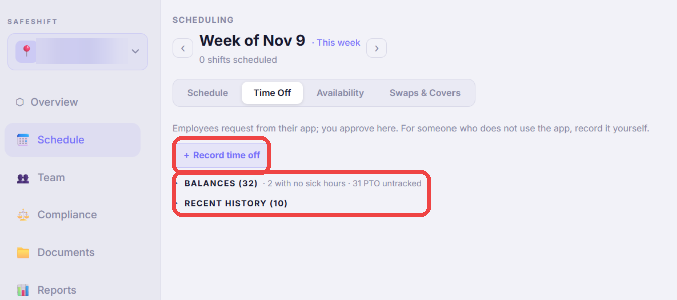
An employee who doesn't use the app can't request time off. Click + Record time off at the top of the Time Off tab, pick the person, Sick (paid) or Unpaid, the days and hours, and save. It is approved in your name on the spot — the sick balance, the payroll Sick line, the conflicting-shift cleanup and the employee's notice all follow exactly as an approval does — and the card shows *recorded by you*. Paid PTO stays with the employee's own request flow. The Balances section below is read-only context for the queue: it starts collapsed with a one-line summary (how many have no sick hours, how many are not tracked for PTO), opens to the full list with a search box once there are more than eight people, and links to the two Payroll pages where balances, allowances and eligibility are actually set — one place per number, so nothing drifts.
Good to know
- Called out first, filing later? Employees can report time off for a past day — up to 30 days back (PTO under an advance-notice policy stays future-only). Those requests carry a *reported after the fact* tag on your queue, and if the pay period is already closed the hours reach the next payroll run as an adjustment.
- Sick leave is separate and never gated by the PTO toggle — California mandates it, so sick requests always work even where PTO is off.
- Recording for someone else is for sick and unpaid days only — paid PTO keeps the employee's own request flow (notice, blackouts, allowance).
- An approval that would push a PTO balance negative is refused — raise the allowance (or set the balance, under the accrual model) on the Paid Time Off page first if the extra time is intended.
- People who work at two of your companies share one PTO balance when 'Treat all locations as one employer' is on — the same rule as sick leave.
- Pending requests appear in your daily digest's follow-ups, so a forgotten request never ages out silently.