📖 All guides
Create your accountChoose how your team clocks inGet the mobile appAdd more locations as you growAdd your employeesInvite your team to the appCollect SMS consent (TCPA)Build and publish a scheduleSort, filter, and read the gridEmployee availability changesSchedule templatesWork the Compliance pagePaid sick leave: policies and balancesCustomize attestation questionsPay period review & certificationTraining: library, assignments, recordsCal/OSHA restaurant safety trainingGet ready for a Cal/OSHA or OSHA inspectionSet up the entrance tablet (PIN kiosk)Lock the tablet to the kiosk (manager passcode to exit)PINs explained: punch PIN vs Manager PINLock punches to the scheduleEarly clock-ins and late clock-outsThe Time Entries report, column by columnEmployees can ask for a punch correction — you approve or denyConnect DailyPay (earned wage access)Tip declarations at clock-outSet up the Attestation StationEmployees who work at multiple locationsDepartmentsApprove shift swapsSend announcementsTime off & PTOHR actions & AI-drafted noticesAccess levels: give someone manager accessOnboarding documents & the digital W-4Other documents on fileBilling, plans & seatsEditing pay after a run is locked (pay instruction)Adding bonuses, commissions and corrections to a pay period

Collect SMS consent (TCPA)

Text-message break reminders legally require each employee's opt-in — SafeShift collects and records it for you.

🚀 Setup path · step 6 of 9

U.S. law (TCPA) requires consent before a business texts an employee. SafeShift enforces this on every send path: no consent on file, no SMS — period. Push notifications through the app don't need SMS consent, which is why inviting people to the app first is the easiest route.

  1. 1

    Click “Send SMS Consent”

    On the Team page, Send SMS Consent (N) shows how many employees with phone numbers haven't opted in yet. Click it to send each of them a consent request.
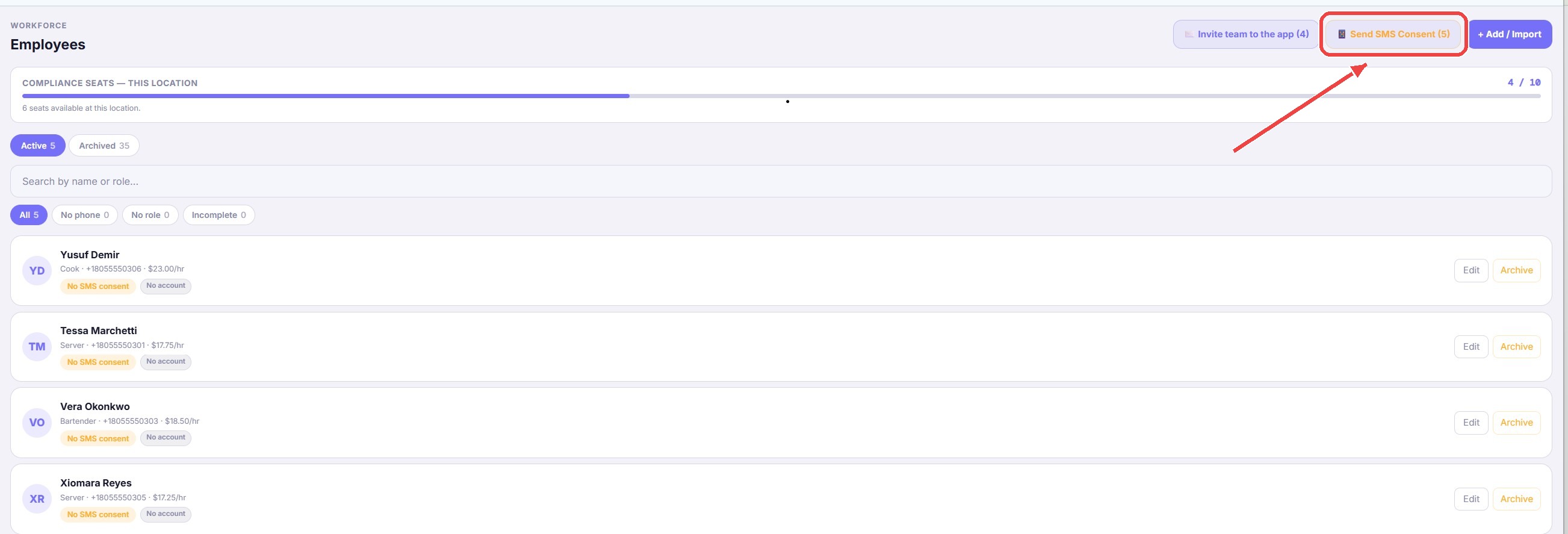
    The Send SMS Consent button on the Team page
  2. 2

    Employees opt in from their phone

    Each employee confirms on their own device. The opt-in is recorded with a timestamp — it's part of your compliance evidence, not just a setting.

  3. 3

    Watch the chips clear

    Rows show No SMS consent until the employee opts in. Once consented, that person starts receiving SMS break reminders (30 minutes before each break is due) in their preferred language.
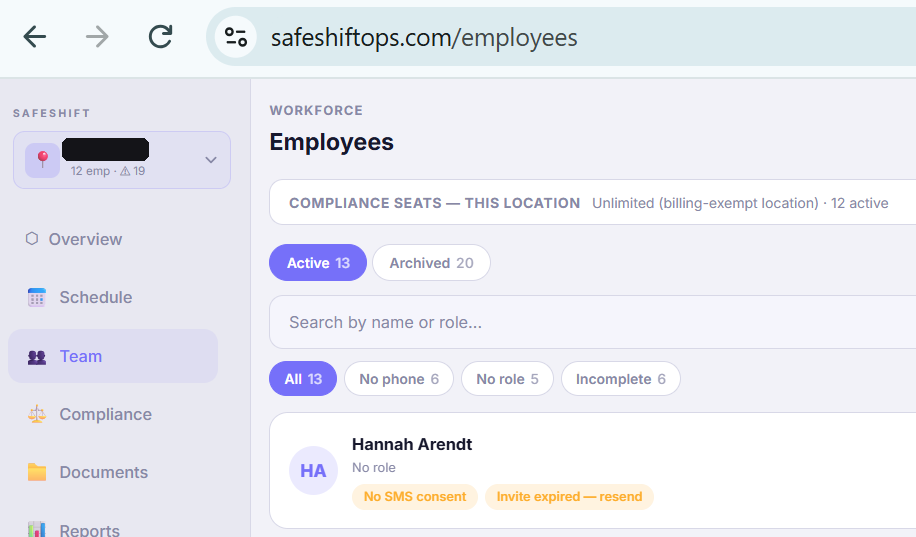
    An employee row showing the No SMS consent chip

If something goes wrong

An employee never got the consent text — what do I check?

Confirm the phone number on their profile is correct (US numbers auto-format to +1XXXXXXXXXX). If it's right, re-send from the Team page.

Do app push reminders need SMS consent?

No. Push notifications go through the app, not the phone network — employees who install the app get break reminders immediately, no opt-in required.

Related guides

See also