📖 All guides
Build and publish a schedule
Create the week's shifts on the grid, then publish so employees are notified and reminders arm.
A schedule is a draft until you publish it. Publishing is what notifies your team and arms schedule reminders — so build freely, then publish once it's right.
- 1
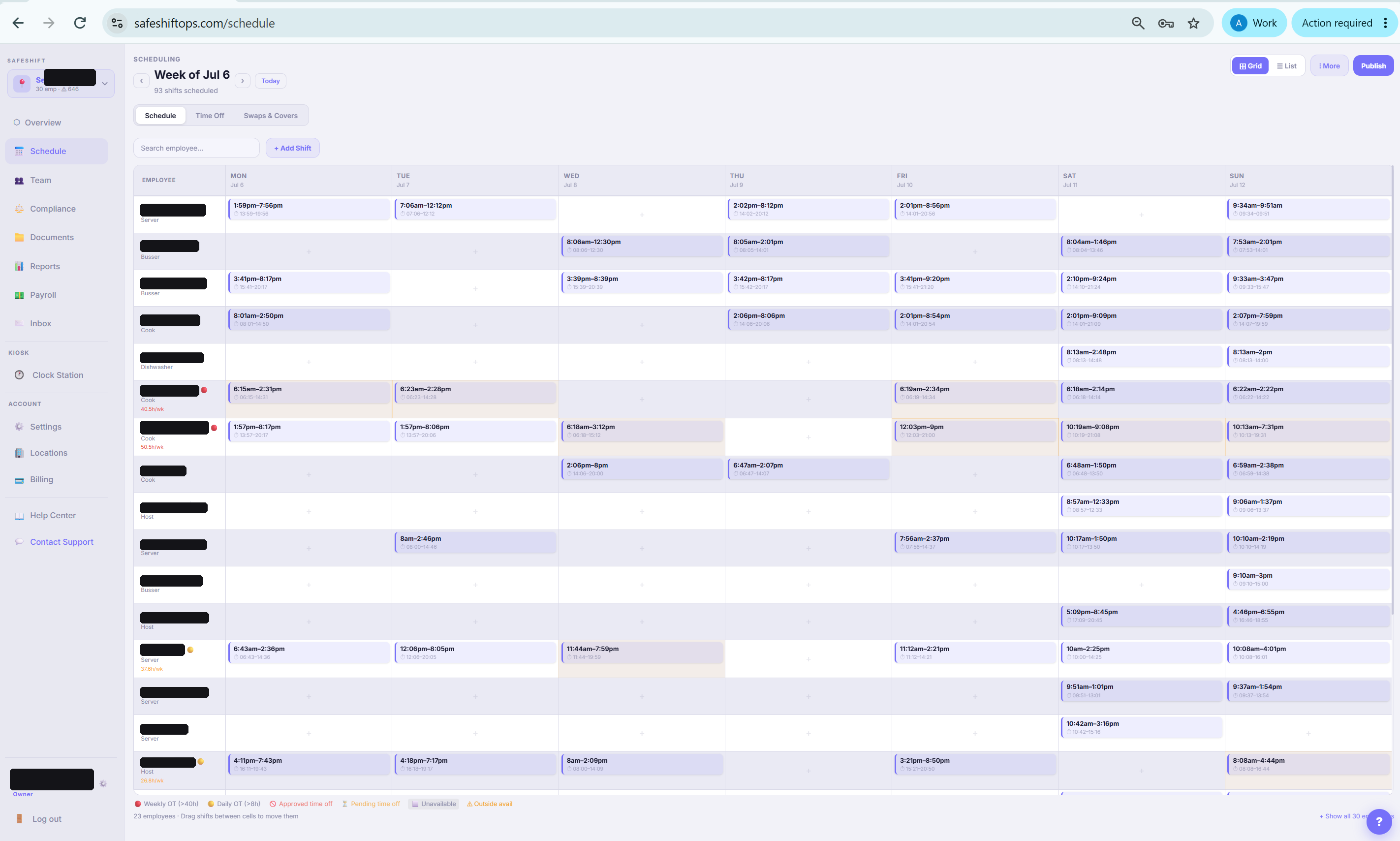
Open the Schedule page
Go to Schedule in the sidebar, pick the location and the week you're planning.
- 2
Add shifts on the grid
Click a cell to add a shift: employee, role, start and end times. Repeat across the week — or copy a previous week and adjust, which is usually faster than building from scratch.
- 3
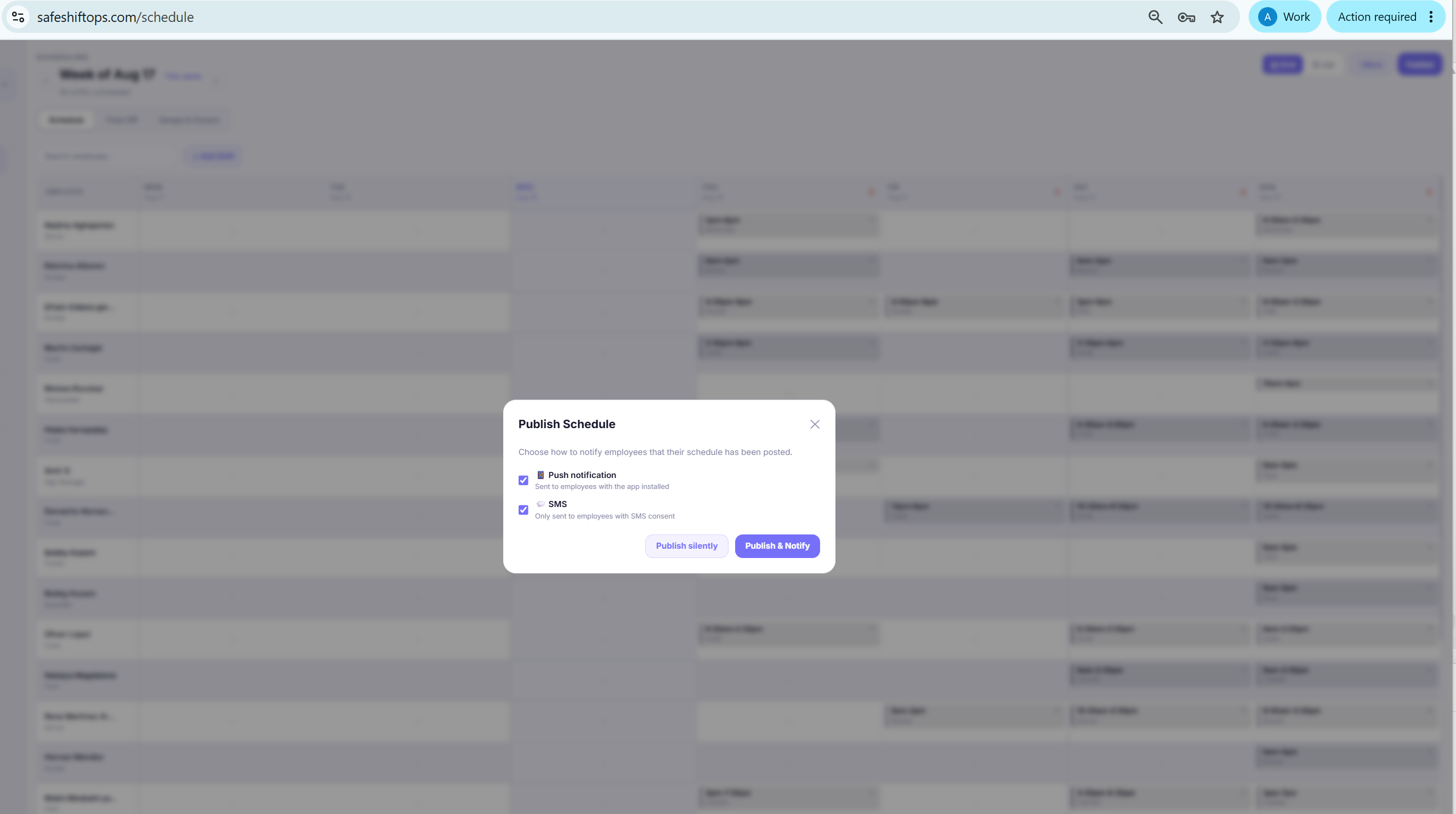
Publish the week
Click Publish. You choose how the team is notified — push notification (app users) and/or SMS (employees with consent on file) — or publish silently with both off.
- 4
What publishing switches on
Publishing is what makes the week official: it notifies the team, arms shift reminders before each start time, and opens the shifts up for swaps. Compliance monitoring itself follows actual punches, not the schedule — except in Schedule Clock mode, where published shifts are the source of presumed time. Need to change a week after it's out? Edit freely — the grid marks each edited or added shift and counts your unpublished changes; click Publish changes and only the people affected get one message listing exactly what changed (old time → new time, added, removed). Every publish is logged. Removing a shift from a published week (the × on a chip, or Clear Week) does not tell anyone by itself: the shift turns into a struck-through removed · not announced ghost on your grid and stays on the employee's phone until you publish the cancellation. Click Restore on a ghost (or Restore removed in the banner) to undo a mistaken removal — the shift comes back exactly as the employee already has it, so nobody is messaged. Rebuilding a cleared week? Add the new shifts first and publish once: a shift re-created identical to a removed one is silent, and only real differences go out.
Good to know
- Changed a published shift? Employees see the update in the app — big changes are worth a heads-up push, so republish with notifications when it matters.
- You can schedule someone at a location only if they work there (their “Works at” list) — that's what keeps hours attributed to the right place.