📖 All guides
Create your account
From the Get Started button to your first login: the signup form, the email setup link, your password, and plan activation.
Signing up takes about three minutes and one email. By the end you'll have a live account with your first location already created from your business details.
- 1
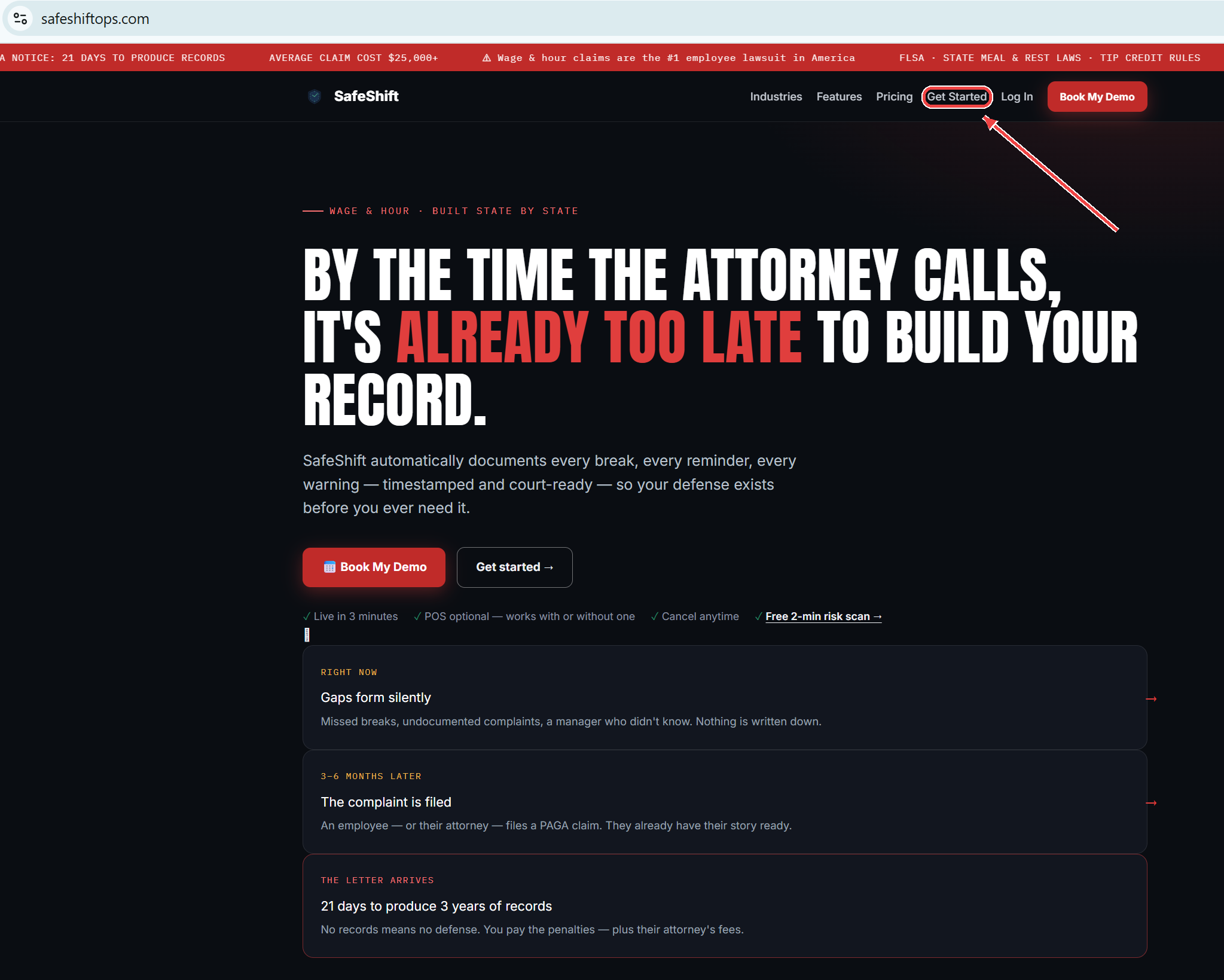
Click Get Started on safeshiftops.com
The Get Started button on the SafeShift homepage takes you to the signup page. (If our team is setting you up instead, you'll skip this — watch for a Your account is ready email with your setup link and jump to step 3.)
- 2
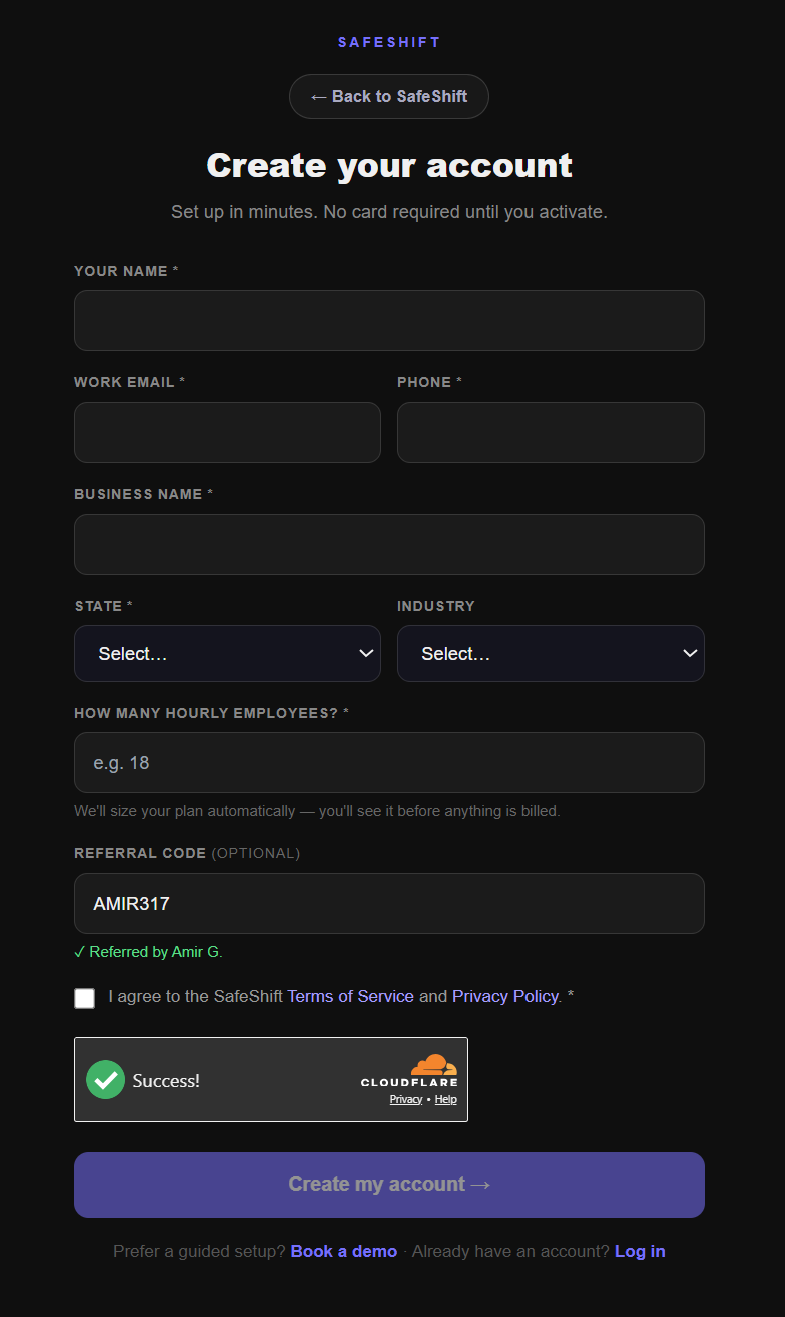
Fill in one short form
Your name, work email, phone, business name, the state where your team works (this drives which labor rules apply), your industry, and team size — then accept the Terms and submit. No password yet, and no card yet.
- 3
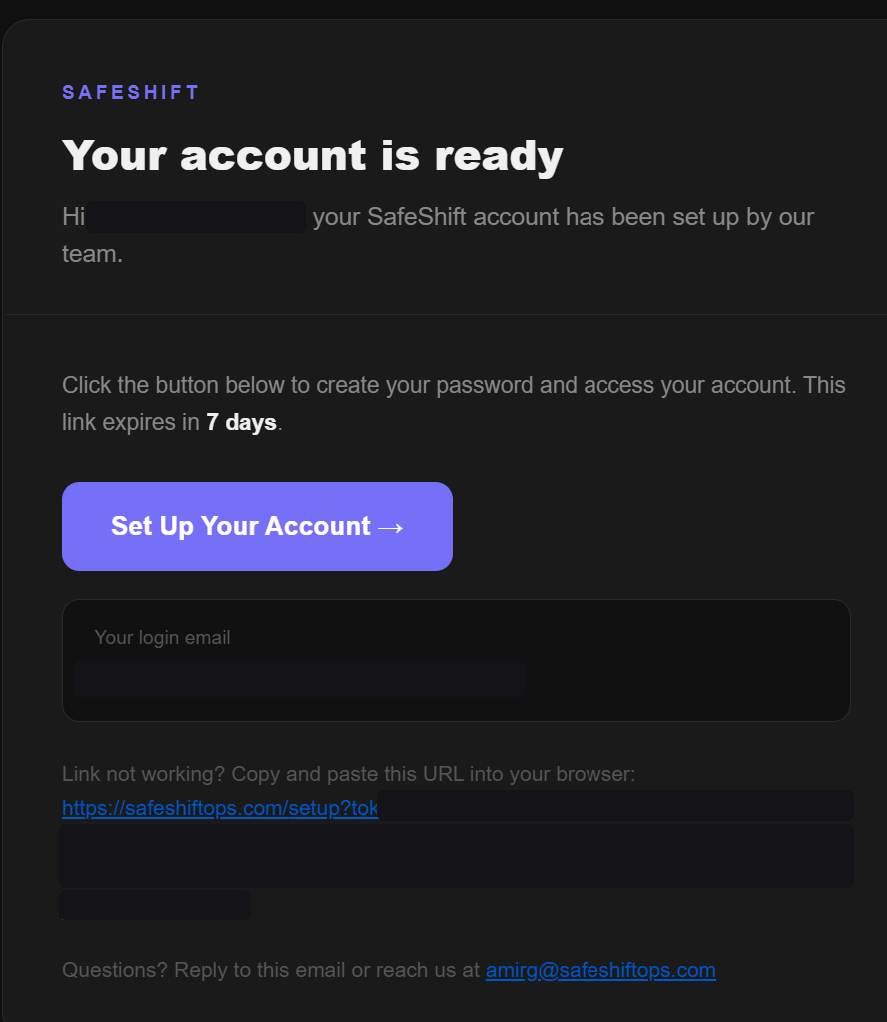
Open the setup link in your email
You'll see a “check your email” screen, and the setup link lands in the inbox you entered — that email IS the verification, so the link is the only way in. Don't see it? Check spam, and make sure you're opening it in a real browser (not an email app's built-in one).
- 4
Create your password
The link opens a page where you choose your password — that's your login from now on, with the work email you signed up with.
- 5
Activate your plan
There's no free-trial limbo: on first login you pick the plan that fits your crew size and enter a card, and your account is live. Every feature is on every plan — tiers only set how many active employees a location can hold.
- 6
See what's already set up for you
Your first location was created from your signup details, with the entrance-tablet kiosk as its default clock. Take one minute under Settings → Locations to confirm its address, work state (it decides which break laws apply), and timezone (break deadlines and reminders run in local time) — then follow the rest of this setup path.
Good to know
- Use a work email you check often — invoices, weekly compliance digests, and alerts all go there.
- Signing up for a business with multiple sites? Create the account with your main location, then add the others from Settings → Locations afterward.
If something goes wrong
The setup link doesn't work or expired.
Links are single-purpose and time-limited. Use the live chat (bottom of this page) and we'll send a fresh one — don't sign up a second time with the same email.
My state isn't listed.
SafeShift launches state by state so every rule we enforce is actually right for your state. Signing up from an uncovered state joins the waitlist — you'll be emailed the moment coverage opens.