📖 All guides
Choose how your team clocks in
Pick between POS integration, SafeShift's own clock (mobile app and/or kiosk tablet), or schedule-based clocking.
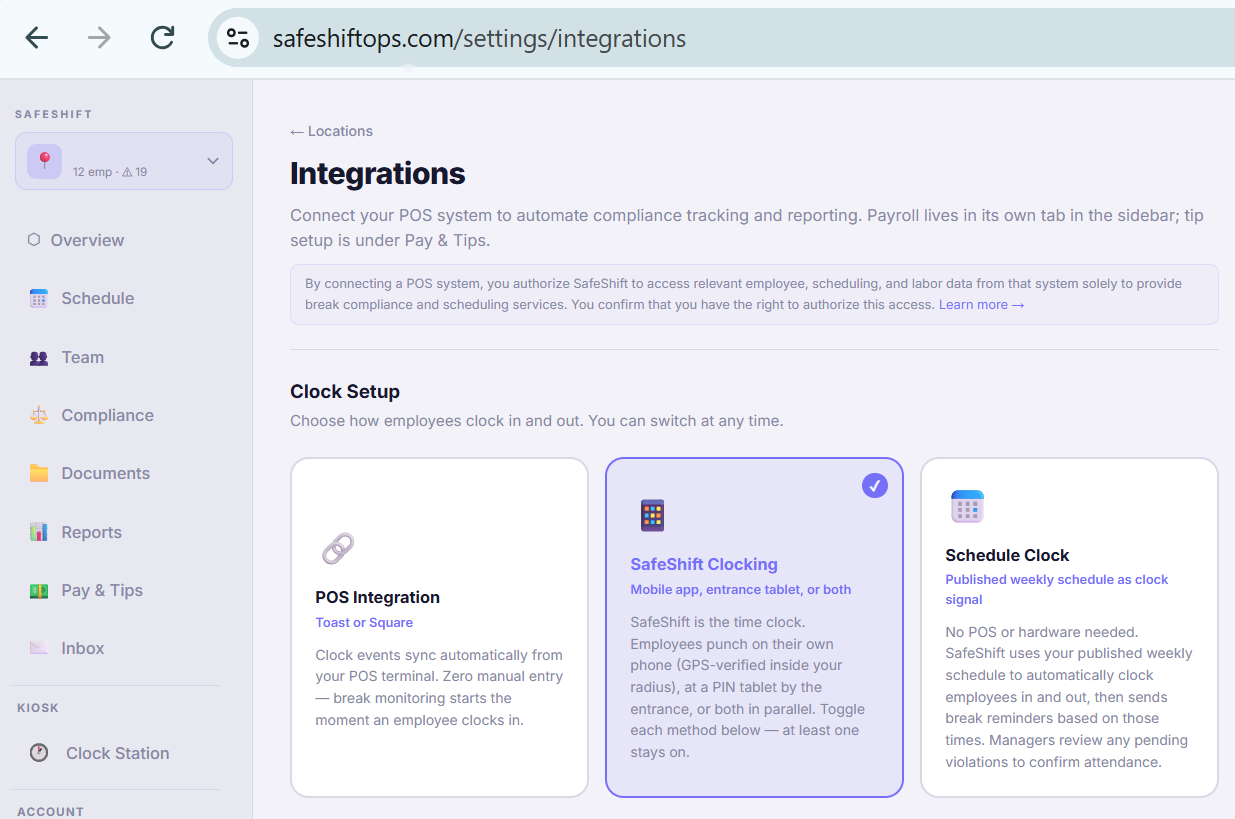
SafeShift needs to know when people are working to protect their breaks. There are three ways to feed it punches — pick one per location under Locations → Integrations → Clock Setup.
- 1
Open the clock setup for your location
With the right location selected, go to Locations → Integrations and find the Clock Setup section. You'll see three cards: POS Integration, SafeShift Clocking, and Schedule Clock. You can switch at any time.
- 2
POS Integration — your POS terminals are the source of truth
If your team already clocks in on Toast, Square, Clover, or SpotOn, connect it under Locations → Integrations and SafeShift syncs punches automatically every few minutes. Employees on POS clocking can't self-clock in the SafeShift app — the POS stays authoritative, so there's never a double punch.
- 3
SafeShift Clocking — the app and/or an entrance tablet
No POS, or a POS you don't want to rely on? SafeShift Clocking gives you two doors you can toggle independently: the mobile app (optionally geofenced to the worksite) and a kiosk tablet at the entrance where employees punch with a 4-digit PIN. At least one door must stay on.
- 4
Schedule Clock — presume the published schedule
For teams that punch somewhere else (a payroll time clock, a paper sheet) or don't punch at all, Schedule Clock treats published shifts as worked time so the compliance layer still runs: break reminders (push + SMS), the 2-hour heads-up, and the clock-out boundary warning all fire off the scheduled times, waiver-aware. When a shift ends the employee gets the break attestation questions in the app or portal — or at an Attestation Station tablet — and their answer doubles as proof they were there; anything unanswered waits for you under Compliance → Pending attendance review. One caveat: presumed time is not punched time — payroll reports flag schedule-presumed shifts until a manager enters the real times.
Good to know
- Mixed crews are fine: an office manager can be on app clocking while the kitchen uses the POS — clock source is tracked per employee.
- Switching a location from POS to kiosk? The mode switcher offers a dry-run that shows exactly which employees will flip before anything changes.
- Kiosk-only location? The In-app breaks toggle on the location card (Settings → Locations) lets employees start and end their breaks from the phone app or portal — while clock in/out stays on the tablet.
If something goes wrong
Can I use the kiosk AND Schedule Clock together?
No — they're mutually exclusive by design. Schedule Clock presumes times, the kiosk records real punches; mixing them would create conflicting records. The Attestation Station is different: it never punches, so it pairs fine with Schedule Clock — enable it under Locations → Integrations for a break-confirmation tablet at the door.
In Schedule Clock, how does SafeShift know an employee actually took their break?
Two ways, both from the employee: tapping a break in the app during the shift (that also proves they were on site), and the break attestation questions that arrive when the scheduled shift ends. "Taken" or "chose to skip" clears the presumed violation with their answer as evidence; "unable" confirms it and the premium pays (owners can switch the skip answer off under Attestation questions so every missed break pays). Your custom questions (Locations → Integrations → Attestation questions) ride the same prompt.
In Schedule Clock, why does the employee app show scheduled hours instead of hours worked?
Because SafeShift isn't the system that pays them. Presumed times from the published schedule are never payable, so the app and portal lead with scheduled hours, list each day from the schedule, and skip the worked total, pay estimate and sick balance (those only track real punches and would read 0 or go stale). The Monday recap email does the same. Breaks and the on-time streak are tracked as usual — that's what the employee is in SafeShift for.
Why can't my POS employees clock in with the app?
By design: when the POS is the clocking authority, app self-clocking is blocked server-side to prevent duplicate or conflicting shifts. Managers can still fix punches from the Clock Station.
How fresh are POS punches in my reports?
Same-day punches arrive within about 5 minutes. The one thing that can lag is a correction a manager makes in the POS to an older, already-closed entry — those normally land at the nightly sync. If you need them right now, the Time Entries report (Reports → Labor) has a Sync POS punches button that re-pulls your date range on demand and refreshes the report when it finishes. App and kiosk punches are always live — no sync needed.