Scheduling · Time clock · Break compliance

Employee scheduling and time clock software

It reminds your team before a break is missed, on your state's break rules, and keeps the record.

Build the week, publish it to every phone, and let your team clock in with a PIN, the app or your POS. SafeShift follows each shift live: it reminds the employee before a break is due and alerts the manager while there is still time. Then it keeps a dated record, ready to export if a wage claim or a PAGA notice ever arrives.

  • 14-day free trial
  • No card needed
  • Every feature on every plan
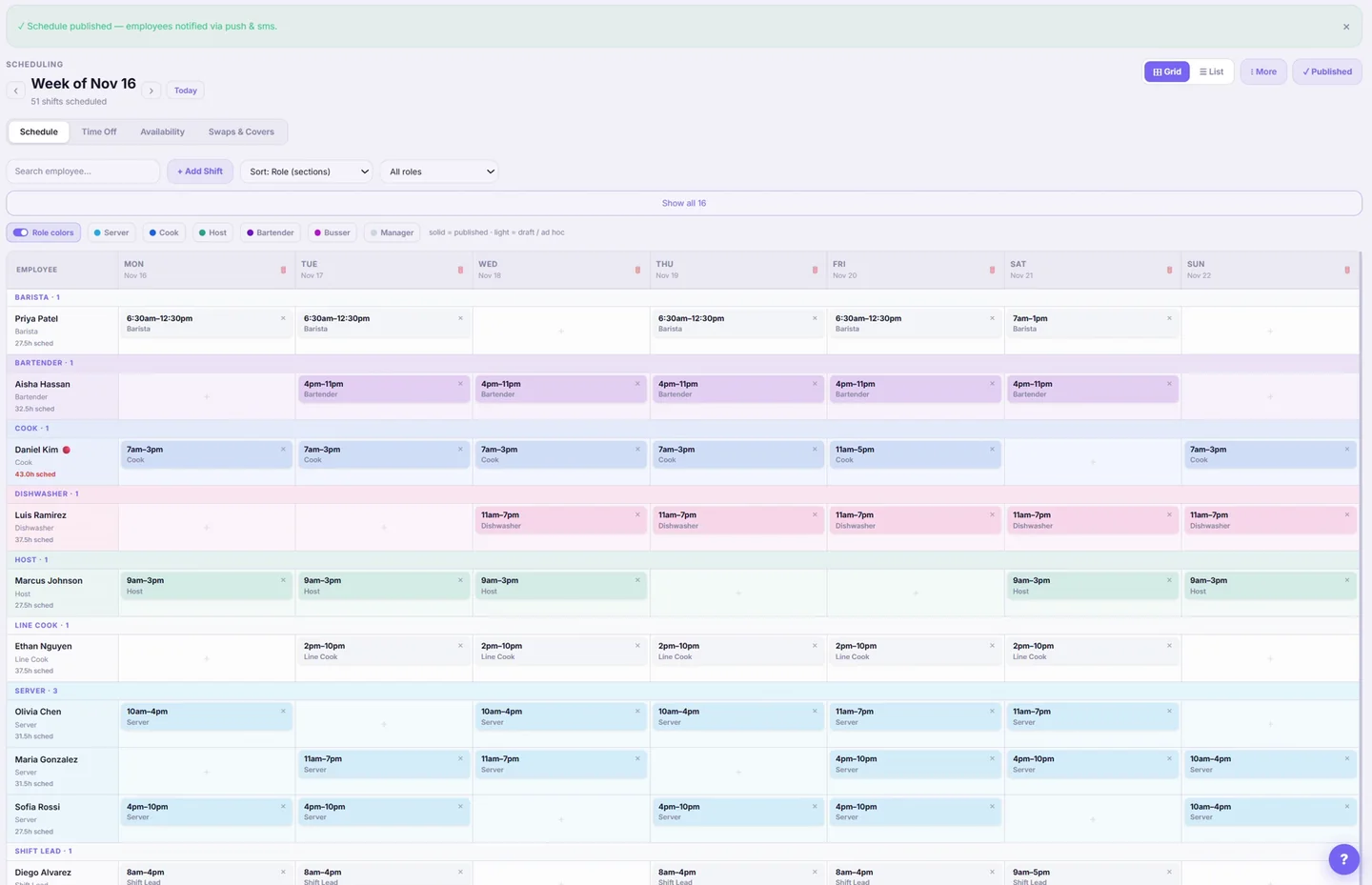
The SafeShift schedule for one week: employees grouped by role, a color-coded shift for each day they work, and a banner saying the schedule was published and employees were notified by push and SMS.
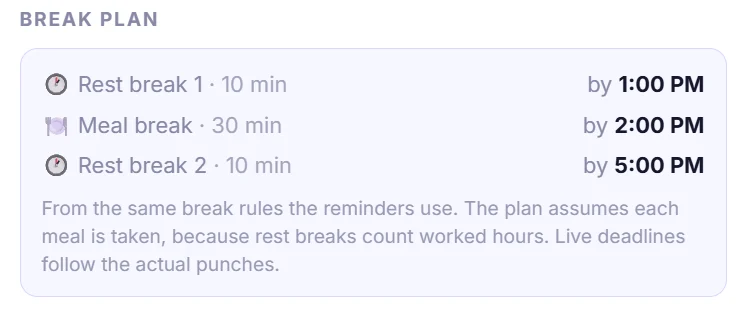
The break plan SafeShift shows for one shift: rest break 1 by 1:00 PM, meal break by 2:00 PM, rest break 2 by 5:00 PM, from the same break rules the reminders use.
  • Works with Toast, Square and Clover, or with no POS at all
  • iPhone and Android apps, and any tablet as the time clock
  • English and Spanish for employees
  • For hourly teams in any U.S. state
What sets it apart

SafeShift acts while the shift is still running. Then it keeps the record.

Employee scheduling and time clock software builds the week's schedule, tells every employee when they work, records when they clocked in and out, and turns those punches into hours for payroll. SafeShift does all four in one app, and adds what a plain scheduling app leaves out: your state's meal and rest break rules run on every shift, and every reminder, punch and break is kept as a dated record.

During the shift, counted from the live punches

  1. 2 hours beforeA heads-up push to the employee: a rest break is coming up.
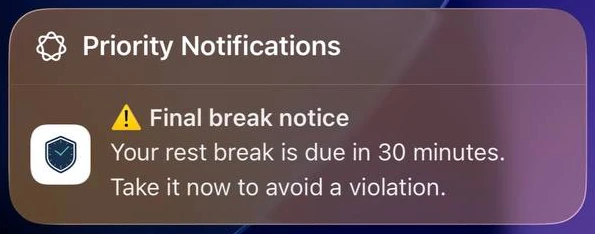
  2. 30 minutes beforeA push to the employee, and a text if they agreed to texts: the break is due in 30 minutes.
  3. 10 minutes beforeA push to managers who chose live alerts, naming the employee.
  4. 90 seconds beforeA final warning to the employee.
  5. The whole shiftThe Clock Station shows whose break is due soon and whose is overdue.

A break that is flagged during the shift can still be taken. One that first shows up in the next day's report cannot.

And every step is kept

  1. Break rules on every shift

    Add a shift and SafeShift shows when each meal and rest break is due under that location's state rules, before you publish.

  2. Every reminder is logged

    The time each push and text went out is saved with the shift, in English or Spanish as the employee received it.

  3. A missed break is recorded that day

    Late, short and missed breaks are judged from the actual punches, and any premium pay owed is logged with them.

  4. The employee's own answer at clock-out

    Did you get your breaks? The answer is signed, timestamped and stored with the shift.

  5. One export when someone asks

    For an audit, a records request or a wage claim, the whole history exports as PDF and CSV. Nothing has to be reconstructed.

In California: the records are ready before a PAGA notice arrives

Reminders sent, breaks recorded, premiums logged and answers signed are saved as they happen, and export as PDF and CSV in one step. In every other state the same record runs on that state's rules and federal overtime. SafeShift provides records, not legal advice. What they mean for a claim is a question for your attorney.

PAGA compliance software
Scheduling

Build the week once. Publish it to every phone.

Start from what you already have: a schedule exported from another scheduling tool, a photo of the printed one, a saved template, or last week. Adjust the shifts on the grid, then publish.

  • Import or copy a week from a CSV file, a photo, a template or any earlier week.
  • See the cost as you build: every day totals its hours, headcount and labor cost, and the grid sorts by start time, role or name.
  • Hours add up as you schedule: each new shift shows that person's day and week totals, so overtime is visible before you publish.
  • Publish and everyone is told, by push notification and, for employees who agreed to texts, by SMS.
  • Change a shift later and only the people affected get a message, listing exactly what changed.
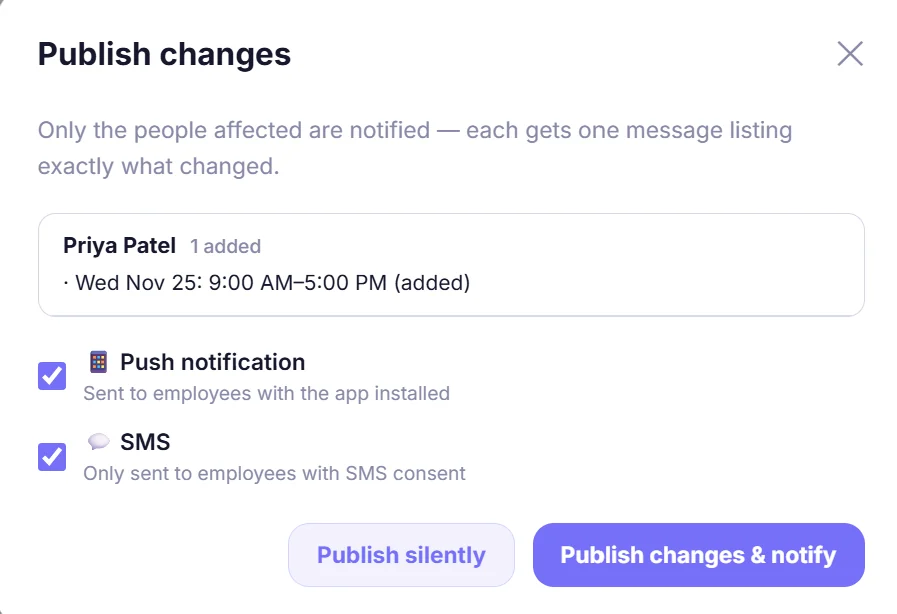
The Publish changes dialog. It says only the people affected are notified, lists one employee with the shift that was added, and has boxes to notify by push notification and by SMS.
Your team

Your team sees shifts, hours and breaks on their own phone

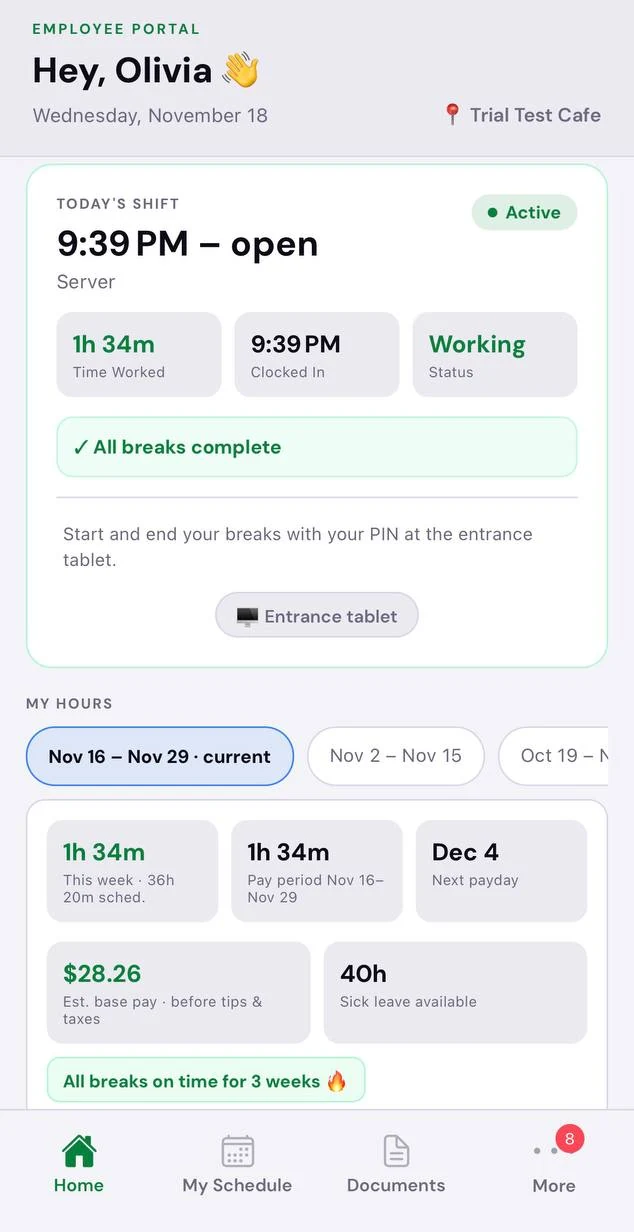
Employees open the app or the web portal for today's shift, their hours for the pay period and whether their breaks are done. Routine requests go through it too, and a manager stays the final approval for swaps and time off.

  • Shift swaps and covers: an employee offers a shift or proposes a trade, a coworker accepts, and you approve. SafeShift warns you when a swap would put someone past 8 scheduled hours in a day or 40 in a week.
  • Time off requests: each one arrives with the employee's balance, their schedule conflicts and that day's coverage in view.
  • Availability: employees set their own, with a notice period you choose, and the grid shades the hours they cannot work.
  • Shift reminders: a push notification 15 minutes before each shift starts.
The SafeShift employee view on a phone: today's shift with the time worked and a note that all breaks are complete, the hours and estimated pay for the pay period, and a line saying all breaks were on time for three weeks.
Time clock

A time clock on a tablet, a phone or the POS you already have

Each location chooses how its team clocks in, and one location can mix them.

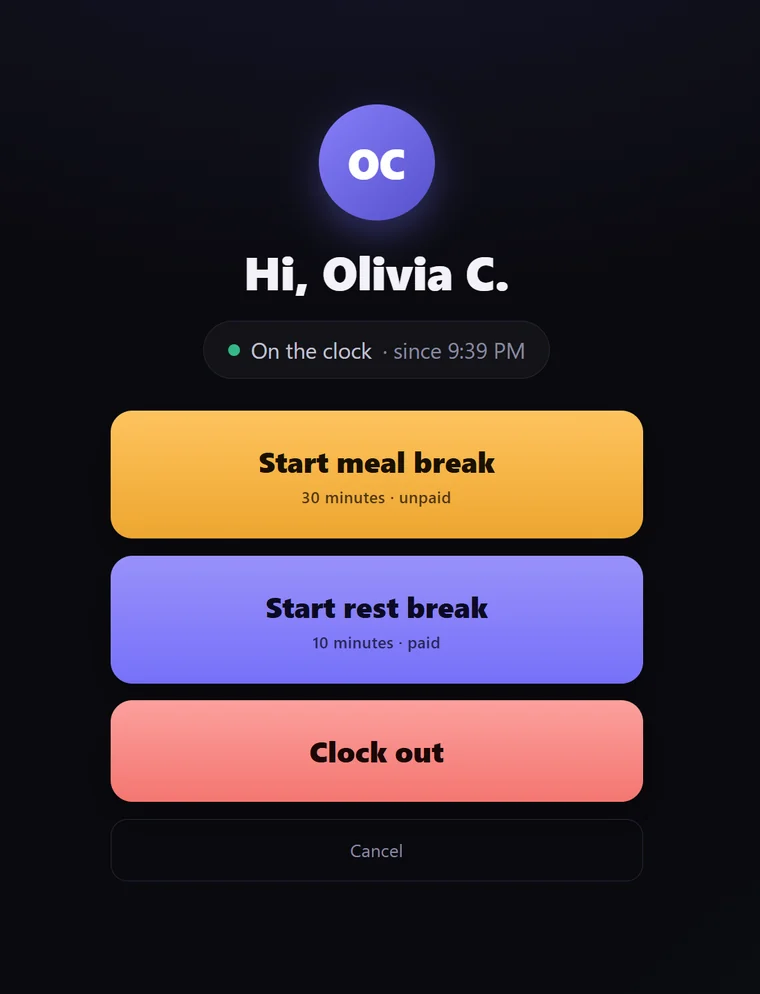
  • PIN tablet: any Android tablet or iPad at the entrance becomes the time clock. Employees clock in, start and end breaks, and clock out with a 4-digit PIN. It keeps working when the internet drops and syncs when it is back.
  • Photo at each punch (optional), so a manager can confirm who really clocked in.
  • Mobile app: employees clock in on their own iPhone or Android phone, limited to your location by a geofence.
  • POS: Toast, Square and Clover punches sync every five minutes, so nobody clocks in twice.
  • Early clock-in lock (optional): punching in before the scheduled start needs a manager PIN.
The SafeShift time clock after an employee enters their PIN. It greets them by name, says they have been on the clock since 9:39 PM, and offers three large buttons: Start meal break (30 minutes, unpaid), Start rest break (10 minutes, paid) and Clock out.
Live board

See who is on the clock, on break or running late

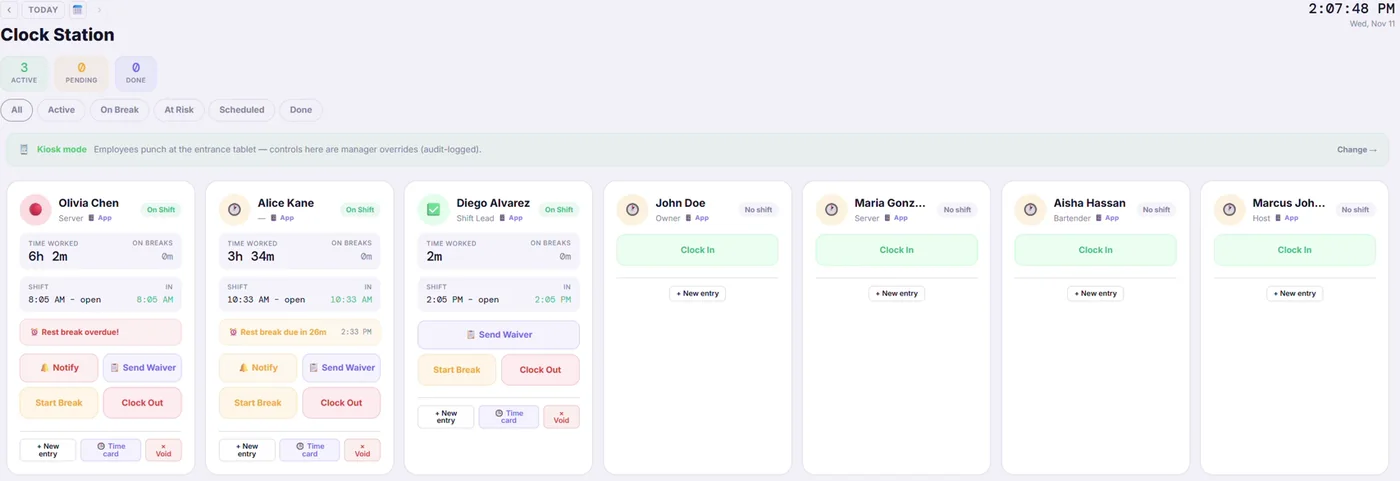
The Clock Station shows today's team at a glance, on the web and in the manager app.

  • One card per person: time worked, breaks taken, and whether a break is due soon or overdue.
  • Fix a forgotten punch on the time card, with a reason. The change is logged under your name and shown to the employee to confirm.
  • Punches are compared with the schedule: an early clock-in or a late clock-out beyond your grace window is flagged.
  • Late arrival alert (optional): managers get a push when someone has not clocked in a set number of minutes after their shift started.
The Clock Station board: a card for each employee. Three are on shift with their time worked; one card says a rest break is overdue and another says a rest break is due in 26 minutes.
Breaks

Meal and rest breaks are part of every shift

SafeShift knows the break rules for each location's state. When you add a shift it shows when each break is due, and the same rules drive the reminders. More in meal and rest break tracking.

  • Reminders before a break is due, by push and SMS, in English or Spanish.
  • A missed, late or short break is recorded the day it happens, with any premium pay it triggers.
  • Rules by state: California's meal and rest rules are covered in depth, and in states with no break mandate, such as Texas and Florida, break tracking stays off.
  • Meal waivers collected with an e-signature, where the state allows one.
A SafeShift notification on a phone's lock screen: Final break notice. Your rest break is due in 30 minutes. Take it now to avoid a violation.
Clock-out

Every shift ends with the employee's own answer

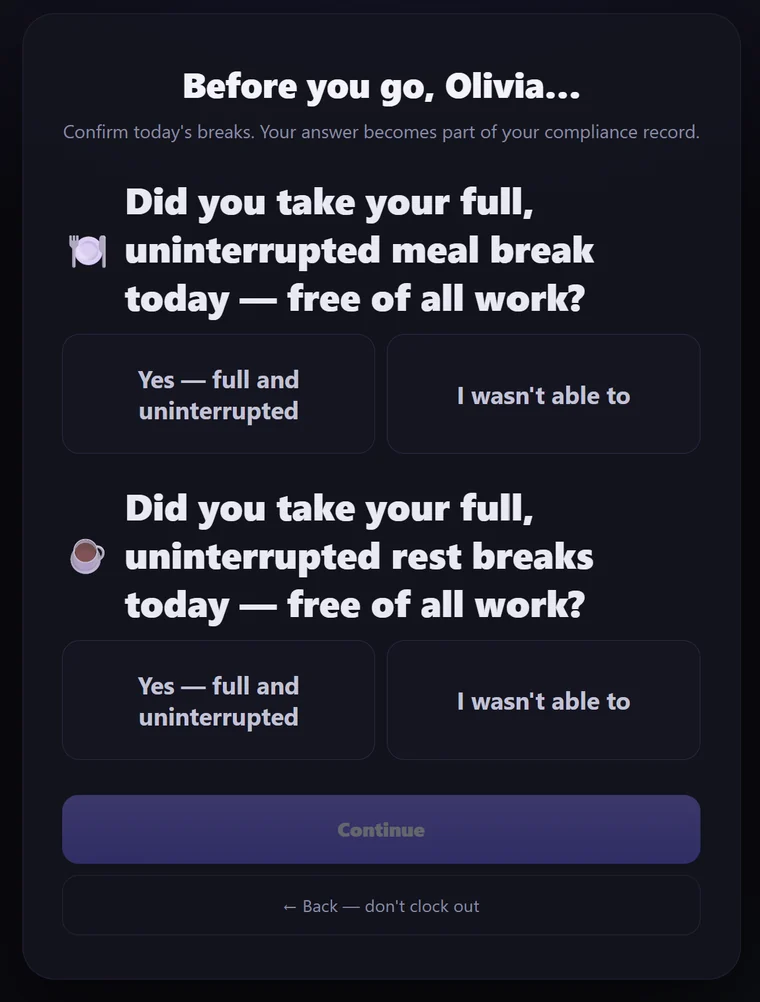
When an employee clocks out, the time clock asks whether they took their meal and rest breaks. The answer is signed, timestamped and kept with the shift.

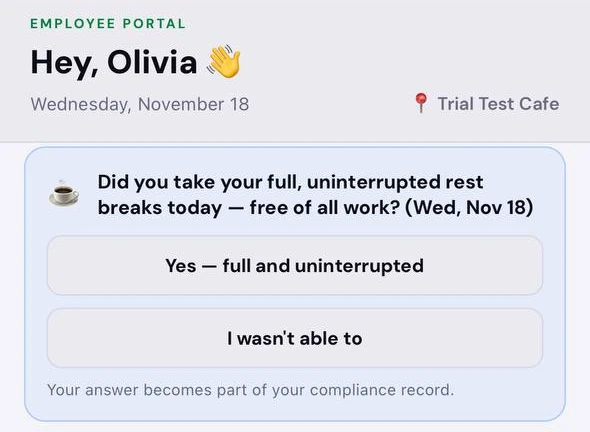
  • Asked on the spot, in English or Spanish, on the tablet. When a shift is closed away from the tablet and a break is in question, the employee is asked on their phone.
  • A missed break surfaces the same day: an answer of “I wasn't able to” goes to the manager and confirms the premium pay. It never waives it.
  • Your own questions: owners can reword the questions and add their own.
  • Kept with the punches: the answer sits on top of the time records and the logged reminders, and exports with them.
The clock-out screen on the time clock: Before you go, confirm today's breaks. Two questions ask whether the employee took their full, uninterrupted meal break and rest breaks, each with the answers Yes, full and uninterrupted, and I wasn't able to.
On the time clock tablet
The same question in the SafeShift app on an employee's phone: Did you take your full, uninterrupted rest breaks today, free of all work? with the answers Yes, full and uninterrupted, and I wasn't able to.
On the employee's phone, when the shift was closed away from the tablet
Follow-up

Missed breaks come to one page, already sorted

The Command Center lists each day's exceptions by employee, with the premium pay each one adds, so a manager only looks at what needs a decision.

  • Decide in one step: confirm the missed break, void it with a reason, or fix the punches.
  • Days your employees confirm clear themselves, so the page stays short.
  • Nothing is deleted: a voided record stays on file with its reason.
  • A running total of the premium pay owed, for today, the week or the month.
The Resolved recently list in the Command Center: one day with four employees, each row showing the shift, the rest and meal breaks involved as colored tags, some marked voided, and the premium pay for that employee.
Records

The whole record in one report

Pick an employee and a date range, and the report lists every missed break with its premium pay, the reminders that went out, and the employee's own answers at clock-out.

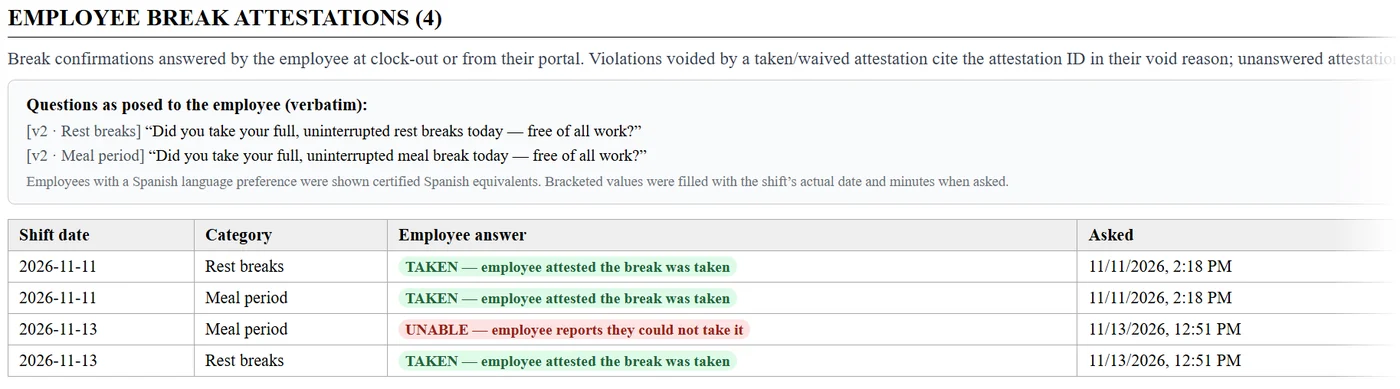
  • The question as it was asked: each answer is shown with the exact wording the employee saw, and when they answered.
  • Where each answer came from: the time clock tablet, the app or the web portal.
  • PDF and CSV, for any date range.
The employee answers section of a Compliance Evidence Report: the two questions exactly as they were asked, then four answers with their dates, three saying the break was taken and one saying the employee could not take it.
Payroll

Hours ready for payroll, without retyping

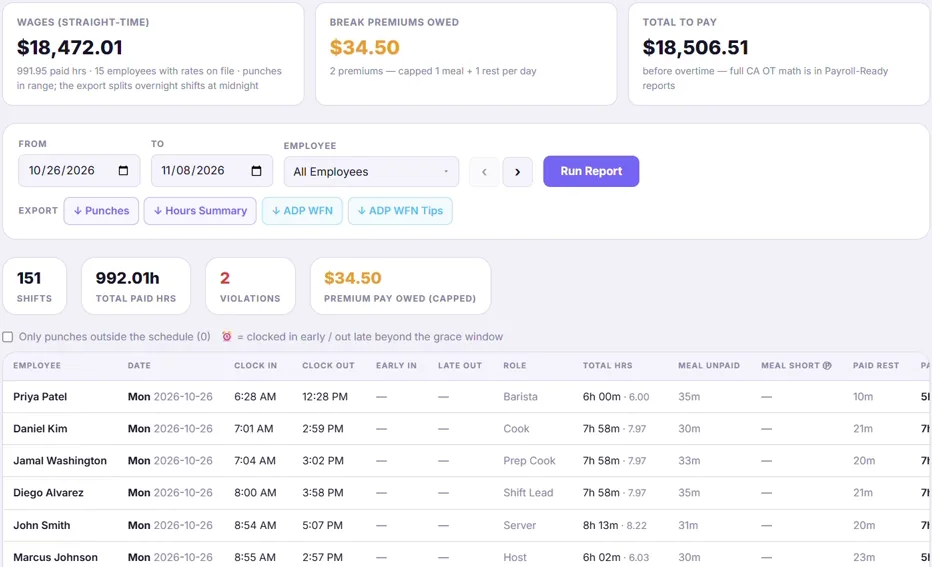
The Time Entries report is the timesheet: one row per shift, with the punches, the unpaid meal time and the hours that pay.

  • Regular and overtime hours worked out for every shift, and double time where the state requires it.
  • Export as CSV, including an ADP format, for a pay period, a week or any dates.
  • Employees review and certify their own time each pay period, or raise a concern.
  • Every edit keeps its history: who changed a punch, when, and what it said before.
The Time Entries report: totals for wages, break premiums and paid hours, export buttons, and a row per shift with clock-in, clock-out, role, total hours and meal time.
Getting started

Three steps to your first published week

  1. Start your free trial

    Create your account online. No card, and every feature is on for 14 days.

  2. Add your team

    Type them in, upload a spreadsheet, or import the roster from your POS.

  3. Publish your first week

    Import the schedule you already have or build it on the grid, then publish. Your team gets it on their phones.

Pricing

One price per location. Every feature included.

You pay for the size of the team at each location, not feature by feature. Every plan starts with a 14-day free trial, and no card is needed to start.

Starter

1–10 employees
$69 /location/mo
or $55 a month, billed annually
Start free trial
Most popular

Growth

11–30 employees
$179 /location/mo
or $143 a month, billed annually
Start free trial

Pro

31–75 employees
$379 /location/mo
or $303 a month, billed annually
Start free trial

Enterprise

76+ employees or many locations
Custom
A quote for your group
Talk to us

Text messages are billed at cost, $0.02 per text, with a monthly cap you set. Full-service payroll is priced separately. No contract: cancel anytime and export your records.

Questions

Common questions

Is there a free trial?

Yes. Every account starts with a 14-day free trial with no card. After the trial, plans start at $69 per location per month and every plan includes every feature.

Can I bring in the schedule I already have?

Yes. Import a CSV file exported from most scheduling tools, or a photo of a printed schedule. SafeShift matches each row to your team and lists anything it could not match, so you check it before it is saved.

Do my employees need smartphones?

No. A shared tablet with a 4-digit PIN is enough to clock in, take breaks and clock out. The mobile app adds the schedule, shift swaps, time off requests and reminders for employees who want them on their phone.

Does it work with my POS?

Toast, Square and Clover sync directly, so employees keep clocking in at the POS and SafeShift reads the punches. If you have no POS, the PIN tablet and the mobile app are the time clock.

Which states and industries is it for?

Any U.S. state and any business with hourly staff: restaurants, retail, clinics, offices and field crews. Federal overtime rules apply everywhere, and state break, overtime and tip rules are applied where a state has them, with the deepest coverage in California.

How is this different from a regular scheduling app?

The schedule, the time clock and the break rules are one system. The shift you publish is the shift the break reminders follow, the punches are checked against it, and every reminder, punch and break is kept as a record you can export if a wage claim or an audit ever comes.

What does it cost?

Per location per month: Starter $69 for 1 to 10 employees, Growth $179 for 11 to 30, Pro $379 for 31 to 75, and a custom quote above that. Annual billing is 20 percent less. Text messages are billed at $0.02 each, with a monthly cap you set.

Build next week's schedule in SafeShift

Start the 14-day free trial with no card, or have a founder walk you through it in 30 minutes.

Rather talk first? Call (949) 329-4325

SafeShift provides records, not legal advice. Operated by Daric Holdings LLC.